
The Okapi Digital Library is now available on EPS Connect through EPS Learning. Once your site licenses have been activated, the articles below will get you up and running with everything you need to use the library with your students.
Overview
Welcome to Okapi Digital Literacy Library! This guide is designed to help teachers and students get started using Okapi Digital Literacy Library through EPS Connect.
Within this article, you’ll learn how to:
- Access Okapi Digital Literacy Library
- Create and Manage Classes
- Add and Move Students
- Assign Okapi Digital Literacy Library Courses
- Teacher Access to the Okapi Digital Literacy Library
Accessing Okapi Digital Literacy Library
Okapi Digital Literacy Library is accessed through the EPS Connect platform.
Depending on district configuration, users may log in through:
- EPS Connect Direct Login
- ClassLink
- Clever
- District Single Sign-On (SSO)

Admin & Teacher Login
Admins & Teachers should log in using the access method provided by their district or school.
- Access the Teacher Dashboard
- Create and manage classes
- Add and organize students
- Assign Okapi Digital Literacy Library courses
Creating & Managing Classes
Classes in Okapi Digital Literacy Library are created and managed directly within EPS Connect.
Teachers and administrators can:
- Create new classes
- Manage existing classes
- Organize students into instructional groups
- Move students between classes as needed
For detailed instructions, see:
Adding & Moving Students
Students can be added to, moved, and organized in classes based on their instructional needs.
Admins & Teachers have the ability to:
- Add students to classes
- Move students between classes
- Organize students based on instructional needs
For detailed instructions, see:
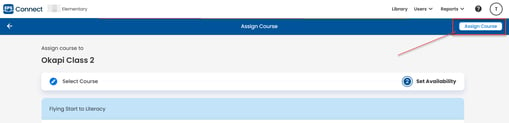
Assigning Okapi Digital Literacy Library Courses
Once classes are created, teachers can assign Okapi Digital Literacy Library courses directly to students or classes.
Typical steps include:
- Select the class
- Choose Assign Course

- Select the appropriate Okapi Digital Literacy Library course select next
- Confirm the assignment
For more details, see:
About the Okapi Digital Literacy Teacher Experience
Once the Okapi Digital Literacy Library has been assigned to your classes, teachers and students will be able to access the library interface. Search for the book(s) you need by keyword or use a variety of filters to quickly get to the resources you need.
For more details, see: