This article is for a District that is manually rostering and not using a rostering integration like Clever or ClassLink.
Create and Edit Classes
District Technical Admins, School Admins, and Teachers can create and edit classes. Classes can be created manually or synced from Google Classroom for districts that have this feature enabled).
-
Login into EPS Connect
-
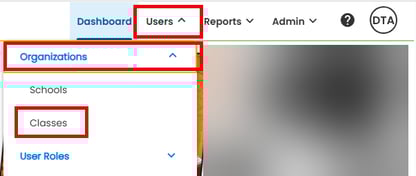
On the Navigation Bar, select USERS > ORGANIZATION > CLASSES (Depending on your role, the menu options available will differ.)
-
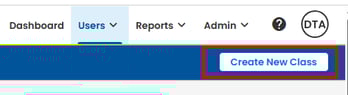
Select CREATE NEW CLASS
-
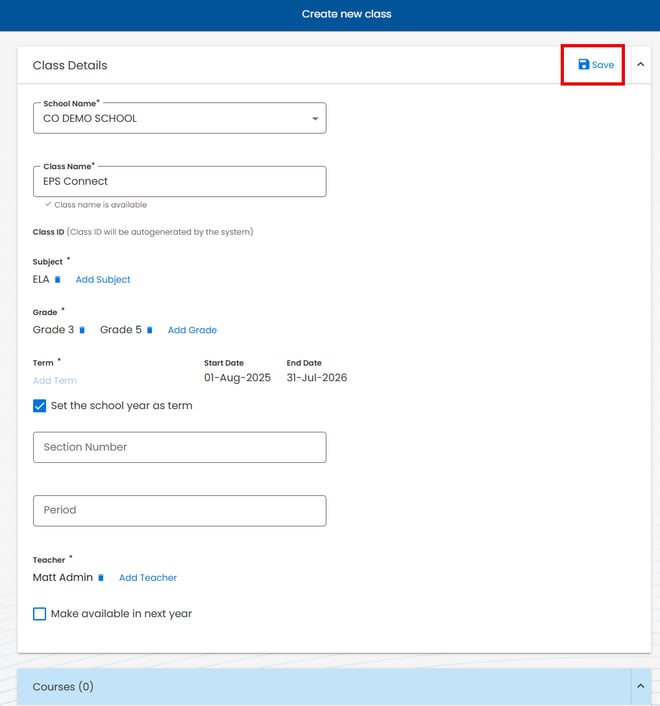
Set your class details:
-
School Name: select school if more than one option available
-
Class Name: Student-facing name for your class
-
Subject(s)
-
Grade(s)
-
Term: Specific terms are created by your district, or you can opt to use the school year as your term
-
Section Number (optional)
-
Period (optional)
-
Add Teacher (District and School Admins only)
-
Make available next year: Check this box to automatically copy your class and its courses to the next school year.
-
-
Select SAVE
-
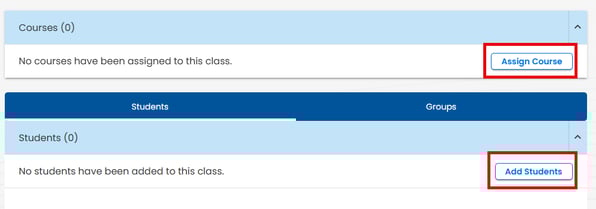
Assign Courses and Students/ Groups.
Edit an Existing Class
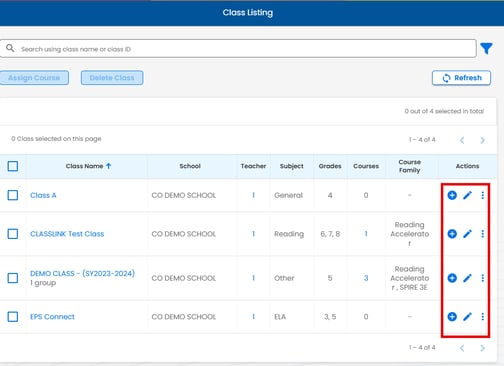
The Class Listing includes Class Name, School, Teacher, Subject, Grades, Courses, and Course Family. Selecting any of the blue links will provide you with more information about that field. Selecting the Class Name will open the Class Details page for viewing/editing.
-
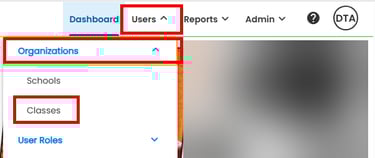
On the Navigation Bar, select USERS > ORGANIZATION > CLASSES,
-
On the Class Listing page, locate the class to edit,
-
Under the 'Actions' column, select the Edit (pencil) icon,
-
Your class details will open in EDIT mode. Select SAVE when edits are complete.
-
Log into EPS Connect and access the applicable program.
-
On the Navigation Bar, select USERS > ORGANIZATIONS > CLASSES
-
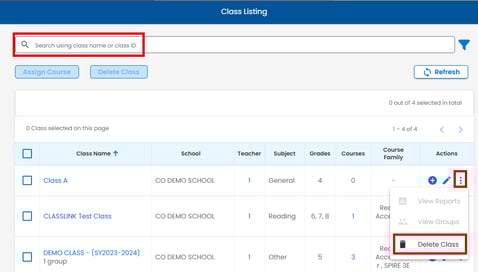
Locate a specific class by using the SEARCH or FILTER options.
-
Select Delete Class after expanding the vertical ellipsis.
-
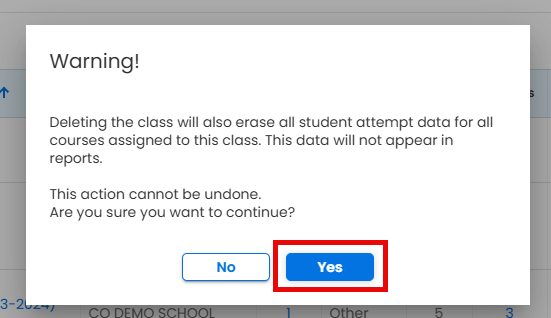
You will receive a warning that deleting the class will erase all student attempt data for courses assigned to the class. Confirm the deletion by selecting YES.