In this article...
This article explains how to assign the initial placement test and oral reading fluency test as well as the middle and end of year reading fluency tests.
Administrators have two options for assigning the initial placement test.
- Assign to all students and then place them in their classes OR
- Place students in their classes and assign the placement test.
Note: Option #1 noted above should be used when administrators do not yet know which students will be using the SPIRE Up program. Purchased student seats are not consumed until students are placed in classes. See Assign a SPIRE Up Course to a Class for details.
Helpful tip!
The below skill correlations will help the teacher determine starting point for students, based on what they already know about the student. If teachers don't have any data at all, they can start at the first skill group.
|
# |
Skill Group |
Example skills tested |
|
1 |
Short Vowels & Consonants |
Short i, short e (e.g., sip, wet) |
|
2 |
Digraphs |
ch, th (e.g., much, math) |
|
3 |
Inflections & Word Types |
Two-syllable words, consonant-le (e.g., rabbit, wiggle) |
|
4 |
Consonant Blends |
Blends with s; dge/tch (e.g., stir, catch) |
|
5 |
CVCe Words |
Silent-e patterns (e.g., slide, tube) |
|
6 |
Special Consonants & Welded Sounds |
-ild/-ind, -old/-olt/-ost (e.g., child, hold) |
|
7 |
R-controlled Vowel Teams |
ar, or (e.g., scarf, porch) |
|
8 |
Long Vowel Teams & Special Spellings |
ai/ay, ea/ee/ey (e.g., train, money) |
|
9 |
Diphthongs |
al/all, au/aw (e.g., mall, sauce) |
Assigning Tests
The following steps assume that you are logged in to SPIRE Up at EPS Connect.
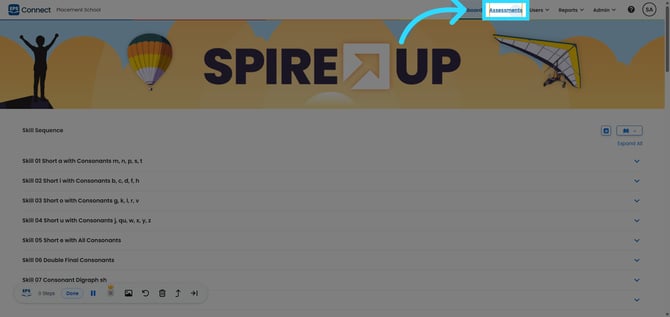
Click the "Assessments" link to access the Assessments section
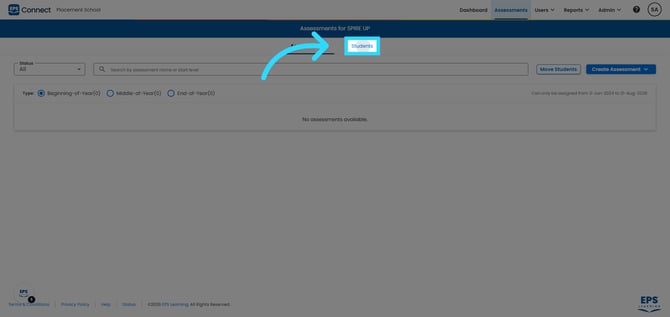
Open the Students Listing and click on the student "Students" or "Assessments" tab to assign the tests.
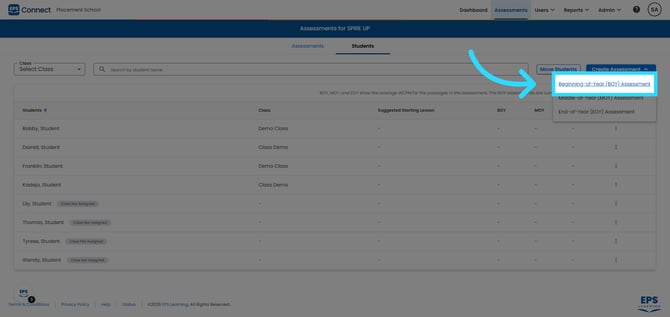
Click the blue "Create Assessment" button to access the Beginning, Middle, and End of Year test options. Select "Beginning-of-Year (BOY) Assessment" to choose the assessment type for assignment. The system will assign the initial placement test if they have not already taken that test.
Click "Assessment Name *" to open the dropdown menu for selecting the specific assessment. EPS Connect automatically assigns the placement test from skill level 1. You can change the starting concept if you wish.
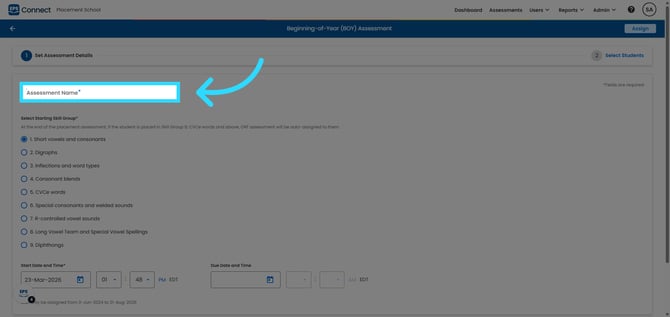
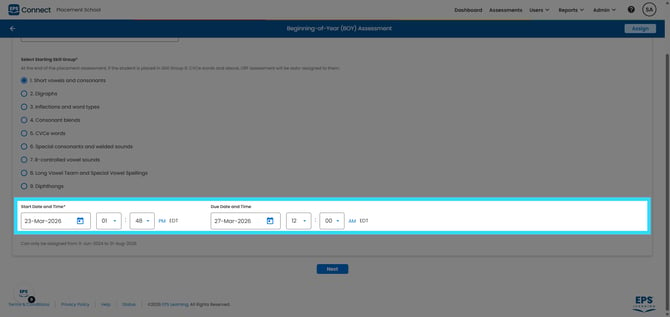
Enter the start and end dates of your testing window (Start Date and Time and End Date and Time). Use the calendar icon to open the date selection interface.
Click Next to proceed to the next stage of the assignment process.
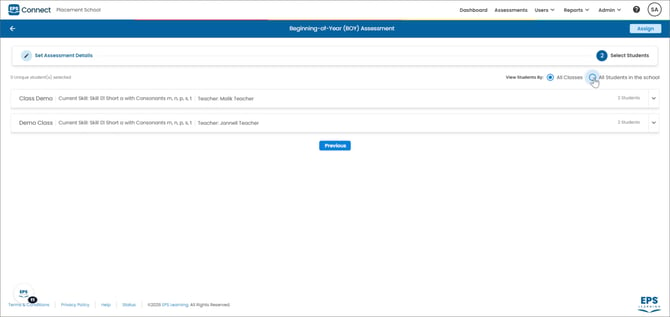
At this point you will see any classes you may have created. You have two options available to select students for the assessment.
-
Select Students by Class. Select the "View Students by: All Classes" radio button. Click the desired class to show the available students, then choose all your students by selecting the checkbox in the list heading or choose specific students by selecting the checkbox to the left of the student.
-
Select Students by School. Select the "View Students by: All Students in the School" radio button. Clicking this will show you all the students at your location. You may choose all your students by selecting the checkbox in the list heading or you can choose just certain students.
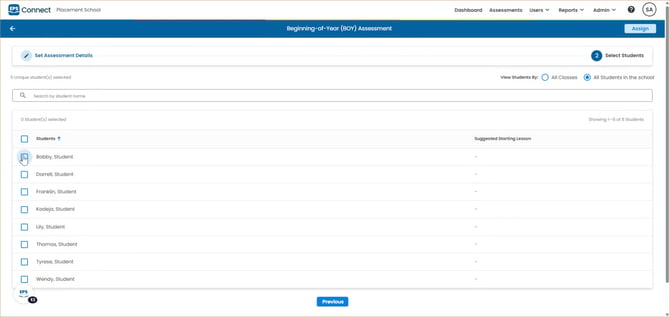
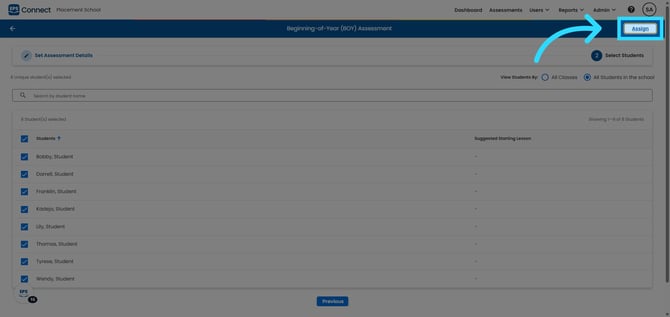
When complete, click the Assign button in the top right of the screen to finalize and assign the assessment to the specified students.
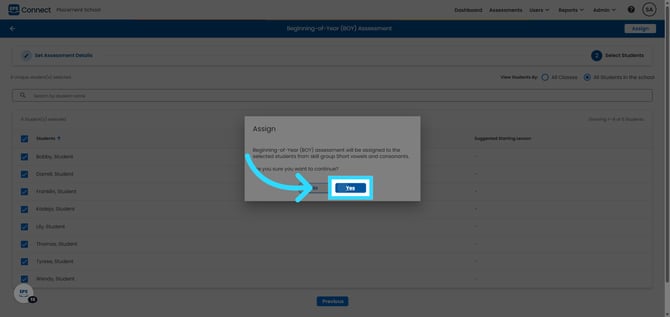
You will be prompted to confirm the assignment. Once you click Yes, you'll receive a "success" message. Click OK to dismiss this message.
Checking Assessment Status
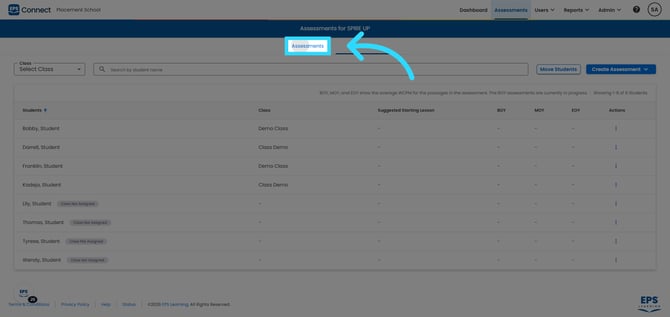
Click Assessments to return to the main assessment page.
Select the desired assessment to view details. The "Status" column will let you know if students have started the test or not. When they are complete you will see the suggested starting level and Words Correct Per Minute based on their reading fluency test.
Please note that if students did not achieve above Skill 6 on the encoding portion of their placement test they will not receive an oral reading fluency test.
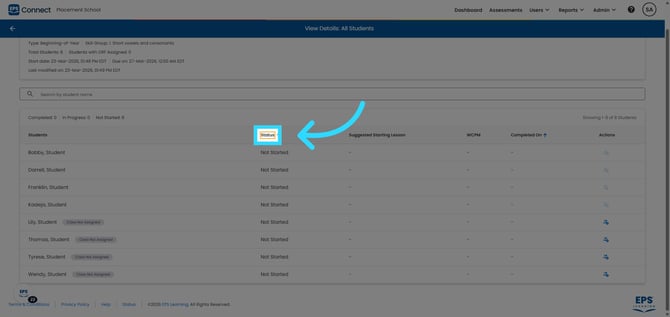
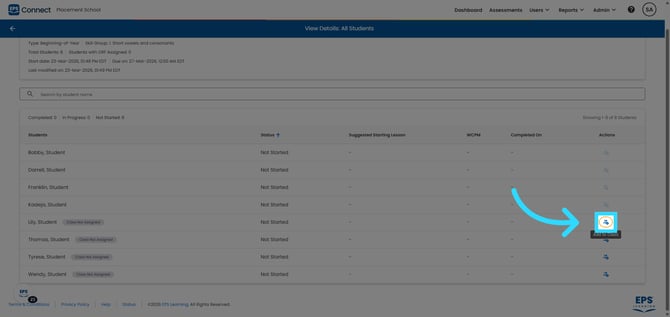
Click the icon in the "Actions" column to easily move students into a class.