In this article...
- Administrator End-of-Year Data Export
- Teacher End of Year Data Export
- Annual Class License Removal Notice
- Frequently Asked Questions
This article walks you through several important steps that both administrators and teachers should take to ensure your SPIRE STAR data preservation at the end of each school year or instructional cycle.
Working with iSPIRE, too? The steps to prepare your iSPIRE data and classes for the end of the year are the same as those for SPIRE STAR
Administrator End-of-Year Data Export
As an administrator, you have access to export student data for your entire school or district. This ensures you retain important information, even if teachers delete or archive student records. The exported data provides insights into student progress across all completed assessments. We recommend downloading reports for both the Concept Assessment and the Pre- and Post-Level Tests. These reports offer valuable information on how far students have progressed through the SPIRE scope and sequence, as well as their performance on key metrics within the Pre- and Post-Level Tests.
Video Guide
Step-by-Step Instructions: Concept Assessement
-
Log in to https://app.exploros.com/login
-
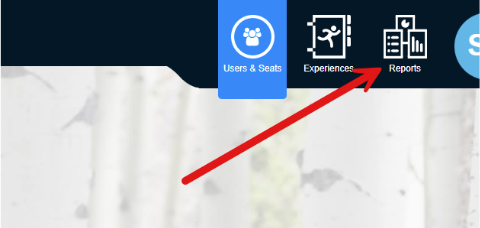
At the top right of your screen, select Reports.
-
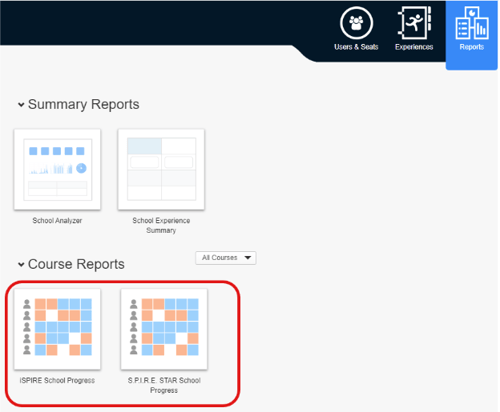
Under Reports, either select SPIRE STAR District (or School) Progress Report
-
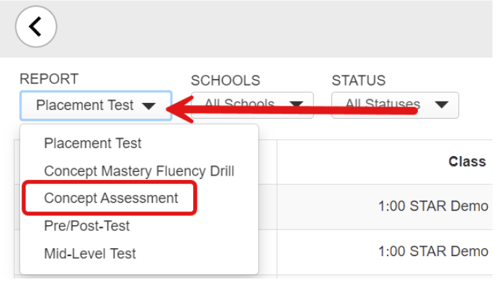
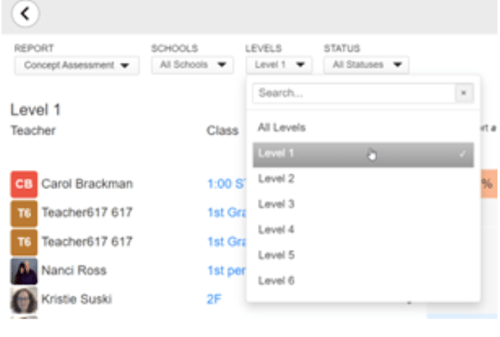
Under REPORT, choose Concept Assessment.
-
From there, choose your level from the LEVELS drop-down list.
-
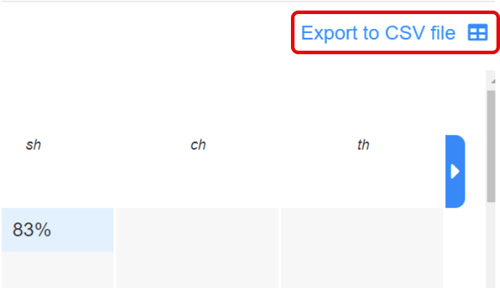
After the page loads, select Export to CSV file and save the file for your records.
Step-by-Step Instructions: Pre & Post-Tests
-
Repeat login and report navigation steps above.
-
Under REPORT, choose Pre/Post-Test.
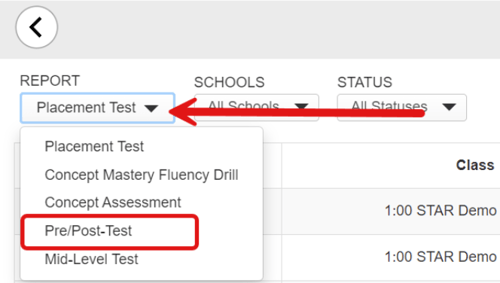
- After the page loads, select Export to CSV file and save the file for your records.
Teacher End-of-Year Data Export
As a Teacher, You can export your students’ data for your records as a teacher. This will be an important step for your student, especially if they are moving to another group, teacher, or school. It will also provide a way to gather information for IEP meetings, district records, or parent conferences. The steps below will guide you through exporting the Student Summary Report. Other reports are available, but this report will ensure the individual student’s data is available, if needed.
Video Guide
Step-by-Step Instructions: Student Summary Report
-
Log in to the Exploros platform. https://app.exploros.com/login
-
After logging in, click on the three lines (hamburger menu) at the top left of your screen and select your class. This will take you to your class dashboard
-
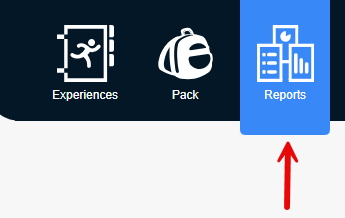
In your class dashboard, navigate to the top-right of your screen and select Reports
-
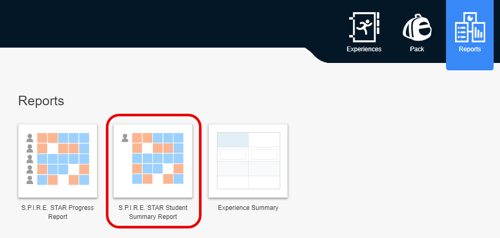
Under Reports, choose the SPIRE STAR Student Summary Report.
-
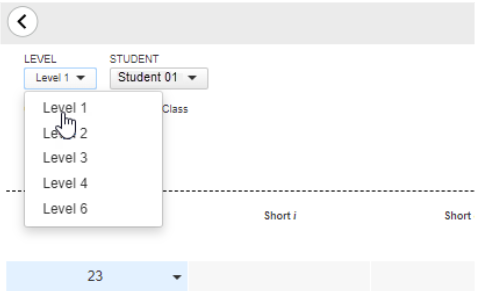
Select your Student and Level
-
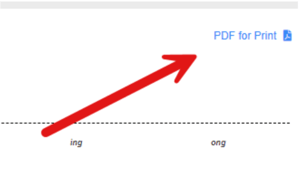
Click PDF for Print save the file for your records.
Annual Class License Removal Notice
For most districts, schools, and teachers, starting fresh each school year provides the best experience. To support this, we will remove licenses for all existing classes as we prepare for the next school year. This step helps free up student seat licenses. Please note:
- Removing the license from a class does not delete it from a teacher’s class list.
- It simply removes access to SPIRE STAR content from the class.
- Students rostered in unlicensed classes will no longer occupy a student seat license.
- This ensures that all licenses are available for new classes in the upcoming school year.
Teachers who wish to continue working with the same group of students can relicense their classes through the class settings.
To opt out of the automatic license removal process, complete our Opt Out Form no later than 11:59 pm on June 30, 2026.
Should you have additional questions about this annual cleanup process, please contact our support team.
Frequently Asked Questions
[Everyone] What will happen to our students' data if we choose not to export?
The student data will be available if the class is not archived and a license is added back to the class.
[Administrators] Do you have an end of year action communication template we can send to our teachers?
We suggest teachers download their class summary report or student summary report prior to the end of the school year. We’ve created editable email templates for Administrators to send to their teachers to share EOY guidance and resources.
[Teachers] What should I do with my data?
There are two different reports you might consider downloading:
- Class Progress Report: Includes dates and scores for all students in your class for a specific assessment, like a concept assessment.
- Student Summary Report: Shows the scores for all of the assessments for one student. It is a great report to print or email to next year’s teacher.
[Teachers] What should I do with my classes?
That depends on which of the following scenarios applies to you.
- My groups will remain pretty much the same
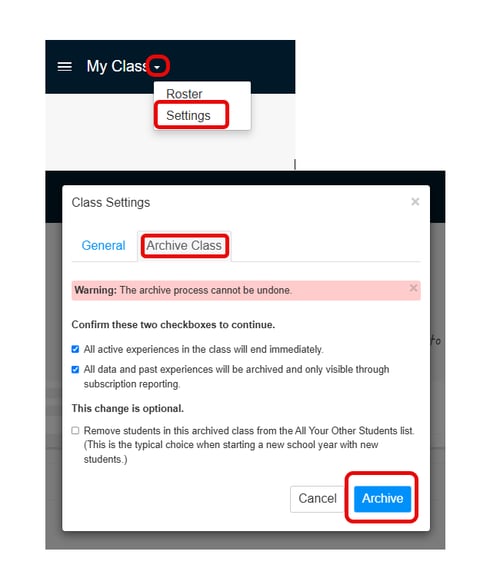
You can maintain your class data by changing the class name only. Be aware that your class will be unlicensed over the summer. Teachers who wish to continue working with the same group of students can relicense their classes through the class settings. See: How to Add a License to Your Class [Exploros] - I will have all new students next year
You can clean up your class list by going to your class settings and archiving your class. This permanently removes your class and data from your list.