
Looking for student data? Use the Progress Report!
The Progress Report displays each individual student's performance over time across assessments and practice sessions along with a projection of expected performance tied to key metrics. The Progress Report can be used to analyze a student's reading behaviors across multiple practice or assessment sessions, track growth, and set goals.
Interactive Progress Report Walkthrough available here
Locate the Progress Report:
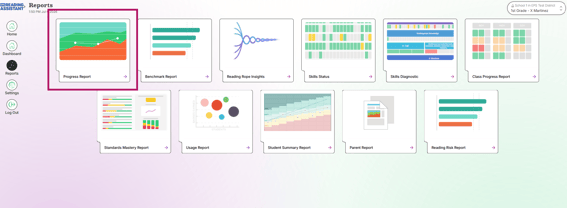
1. From the Growth Dashboard, click Reports at the top left section of the screen
2. Select Progress Report
3. Choose student of choice from the menu
Analyze Student Data
1. Choose the desired metrics from the drop down 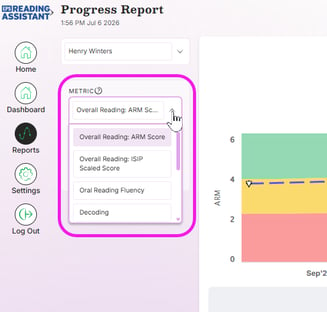
2. Read the graph
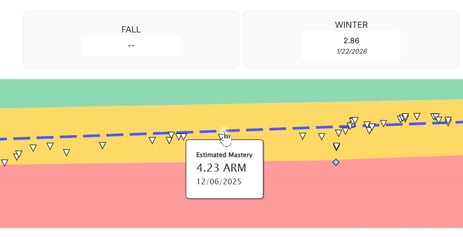
Each dot on the graph represents one assessment or practice session along with the corresponding score. Hover over the dot to find out more about the session. Placement of the dots will inform the direction of the blue progress line.
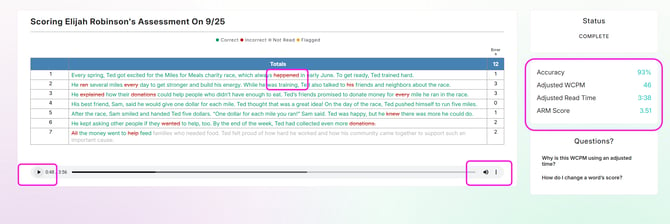
3. Click a story title to open the transcript

-
-
Click the play button to listen to the student
-
Click any word to override scoring
-
Click the three dots to download a recording
-
Check the soring metrics
-
For more support with Listening to Student Recordings, select How to Listen to a Student Recording