Student recordings provide a closer look at reading performance and progress. Listen to ORF assessment passages and Amira practice sessions, review and override auto-scoring when needed, monitor student performance, and play or download recordings to share with parents, stakeholders, or students during conferences.
Interactive Recording Walkthrough available here
Locate the Recordings:
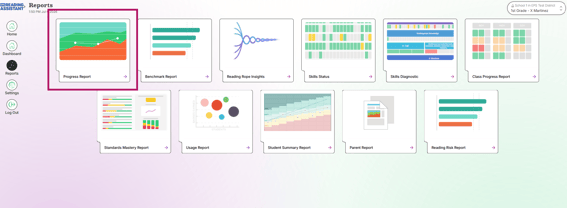
1. From the Growth Dashboard, click Reports at the top left section of the screen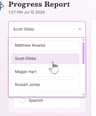
2. Select Progress Report
3. Choose student of choice from the menu
4. Scroll down to the Activity Details Table and click on an Assessment or Tutor (story name)

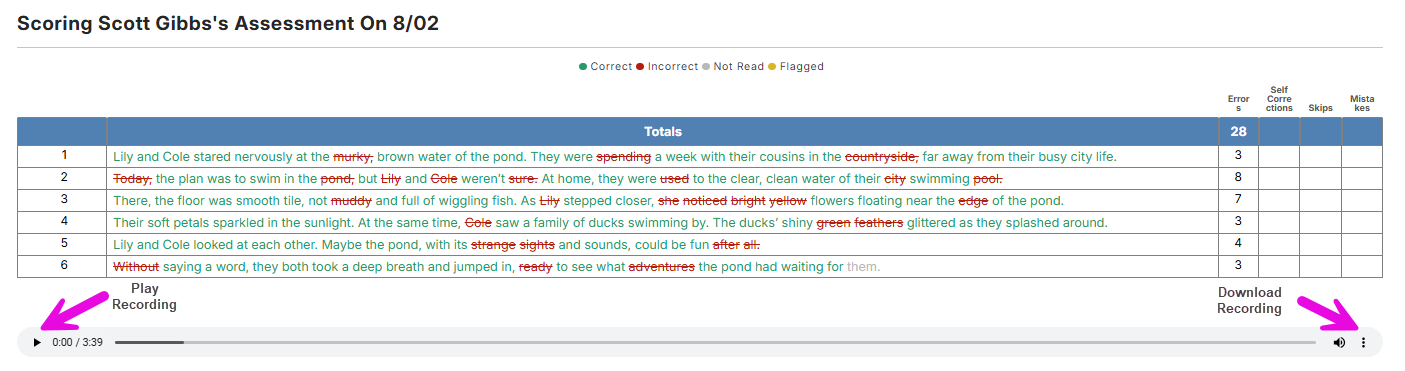
View the scored transcipt and recording:
-
To listen to the recording, pres the play button located below the transcript
- To download the recording, click the three dots to the right of the recording and select "download"
- To re-score a passage, click on any word in the transcript. Its color will toggle between red and green. Click "Save Changes"
Click below to view a tutorial: