
Reviewing the following configurations will help ensure a successful launch experience.
How to Adjust App Settings
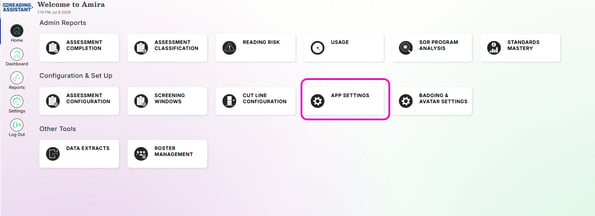
The App Settings tile allows administrators to adjust key settings related to Amira Tutor, Amira Instruct, and reporting features to align with district instructional goals and preferences.
Interactive App Settings Walkthrough available here
Configure Tutoring 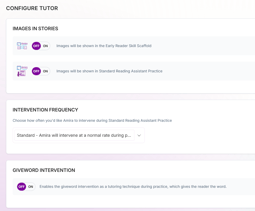
Customize Amira Tutor by turning story images on or off, setting how often Amira intervenes during reading (High, Standard, or Low), and enabling the Giveword intervention, which provides students with the correct word when needed.
Configure Reporting
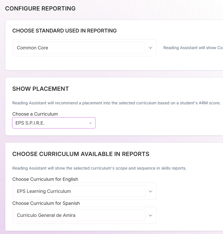
Customize reporting by selecting your state standards and curriculum (or default options if not listed), enabling DRA, Lexile, or F&P reading levels for ORF passages on reports, and allowing teachers to mark self-corrections, skips, and errors during review.
How to Configure Assessments
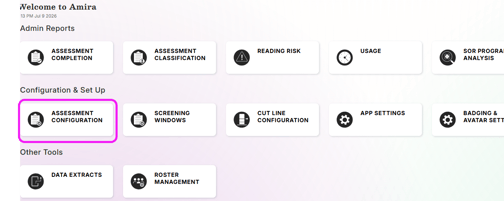
The Assessment Configuration tile in the Admin Dashboard lets administrators customize assessments to align with district goals, state requirements, and student needs. Admins can select a predefined configuration or adjust tasks by grade level, including options for the Rapid Automatized Naming (RAN) task and language preferences.
Interactive Assessment Configuration Walkthrough available here
Viewing Configurations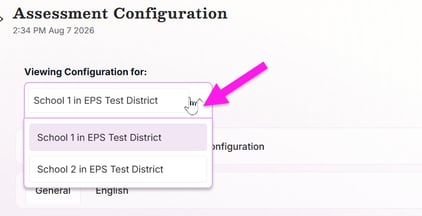
Select the schools or district you are configuring assessments for
General Tab: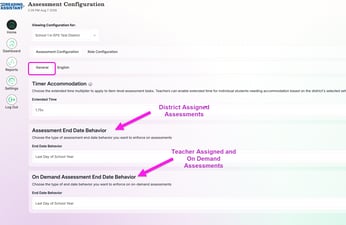
Make any changes to the timer accommodation or end date behaviors.
Last Day of School - Assessments will remain assigned until completed by student or last day of school.
Last Day of Window/Month - All unfinished assessments will be removed on the last day of the assessment or window.
English Tab: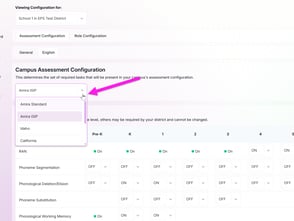
Assessment Tasks
Use the District Default dropdown to select the required tasks for your district’s assessment configuration. If your state-specific option isn’t available, choose Amira Standard. View required tasks by grade and use dropdowns to toggle additional tasks on or off.
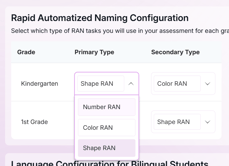
RAN Configuration
Select the RAN task type. Students will begin with the Primary Type, and if they struggle to make progress, Reading Assistant will automatically adapt to the Secondary Type.
Language Configuration 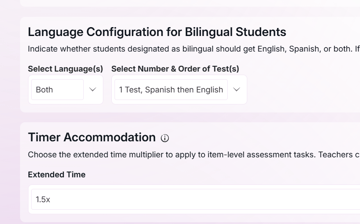
Indicate whether students designated as bilingual should receive the assessment in English, Spanish, or both. If both, select the number and order of tests.
How to Assign District-Wide Assessments
Reading Assistant Benchmark and Progress Monitoring Assessments play a critical role in understanding student literacy needs. They help determine each student’s instructional reading level, establish data points for measuring growth over time (Benchmark only), and collect valuable insights into a student’s overall literacy profile.
Interactive Walkthrough available here
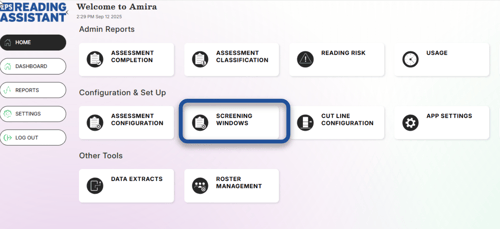
From the home screen, select "Screening Windows". If prompted, choose either 3 times per year or monthly assessment. Three times per year is recommended if only assigning Benchmark Assessments.
Enter the beginning and ending date for the desired window. Deselect any grade you would like to exclude. Select BOY, MOY, or EOY for Benchmark Assessments(Beginning, Middle, or End of Year).
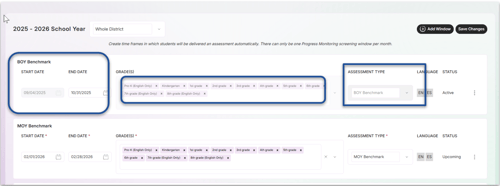
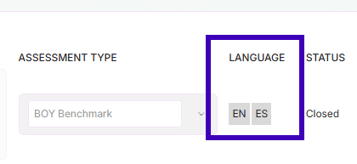
The Language column will show if students will be assessed in English, Spanish, or both. To make adjustments, use the Assessment Configuration tile. Teachers must also adjust Assessment Settings before an assessment window opens for students to receive the assessment in both languages.
Click the links below for more information:
How to Track Assessment Results for Administrators
Assigning District-Wide Assessments for Administrators