
In this article...
Teachers have control over language settings and other preferences for students through the "Settings" button on the Growth Dashboard.
Adjusting Student Tutoring Settings
- From the Growth dashboard, click the "Settings" button, then the "Tutor Settings" tab.
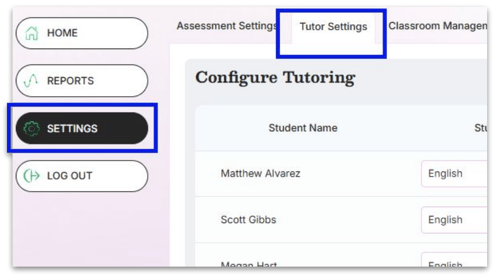

- In the Practice Reading In column, the only currently available option is English.
- In the English Tutor Practice Mode column, choose Standard Practice to align with the student’s instructional reading level. Choose Early Reader to focus on foundational reading skills
- The English Tutor: Amira Speaks In column, choose the language preferred for Amira's coaching.
- The Spanish Tutor: Practice Mode is currently unavailable to Reading Assistant.
Adjusting Assessment Settings

- From the Growth dashboard, click the "Settings" button, then the "Assessment Settings" tab.
- In the Student Language column, choose Bilingual to unlock the Spanish speaking settings.
- In the Instructions for English Tasks column, select the preferred language used for the assessment.
- In the Digital Assessment column, indicate if a student requires the Paper and Pencil option. Before using this option, confirm this with your administrator and EPS Technical Support.
- In the Extended Time column, select "On" if the student requires extended time for assessments. The default extension is 1.5x the standard time. This can be adjusted in the Assessment Configuration tile in the Administrator Dashboard.