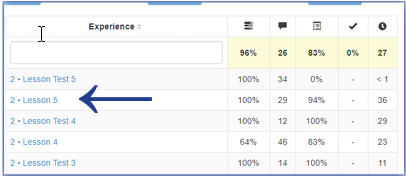
PDF: Student Summary Report
The Student Summary Report provides data for an individual student’s performance on all experiences taught in a class. It provides a way to review any given student’s activity within a chosen class and can be useful in parent-teacher conferences. For each experience taught, teachers can view a variety of metrics based on a student’s performance.
Viewing the Student Summary Report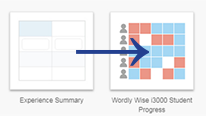
To navigate to the Student Summary Report, first enter a Student Progress Report.
Once in the Student Progress Report, choose a class.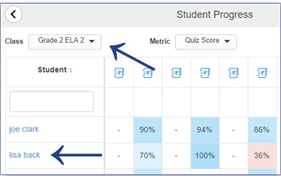
The names of the students in the class are hyperlinked. Click on any student’s name to open the Student Summary Report.
The Student Summary Report lists all the experiences that the chosen student has participated in. The report lists only experiences that have ended.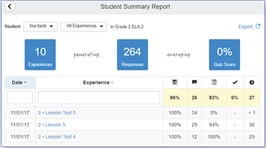
Report Filters
This report can be filtered by student and experience. Use the Student drop-down menu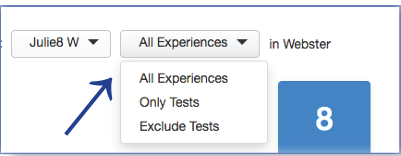 to choose between students. Use the Experiences drop-down menu to filter by type of experience. Choose “Only Tests” to isolate the test information or choose “Exclude Tests” to isolate the lesson information.
Report Metrics
The yellow top row displays the selected student’s averages for the data in each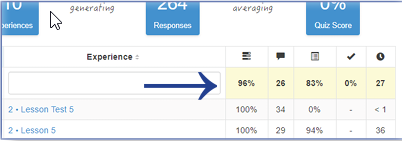 column based on the filters. The average is calculated from all relevant data.
Report metrics include:
• Percent complete: percentage of questions in the experience completed by the student
• Responses: number of responses the student submitted in each experience
• Average activity score: score calculated by averaging all auto-scoreable responses, based on first response
• Quiz score: test percentage for any completed test
• Time on task: number of minutes the student spent on the experience
The report can be sorted by date, experience name, and any other column metrics by clicking on the column title you want to sort by.
The report can also be exported for sharing, analysis, or printing by clicking on the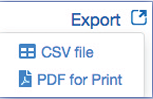 Export feature in the top right-hand corner.
Experience Data
This report is directly tied to data from the lessons and tests. To see specific student responses to each question or activity in an ended experience, click the hyperlinked experience name.