In this Article...
- Teacher End-of-Year Data Export
- Annual License Removal Notice
- Frequently Asked Questions
This article walks you through several important steps that teachers should take to ensure your Wordly Wise i3000 data preservation at the end of each school year or instructional cycle.
Teacher End-of-Year Data Export
The EPS Learning team strongly recommends that Wordly Wise i3000 teachers download their students’ data before the end of the school year to ensure important progress information is preserved. The recommended report for this purpose is the Wordly Wise i3000 Student Summary Report, which provides a comprehensive overview of each student’s performance.
Step-by-Step Instructions: Student Summary Report
-
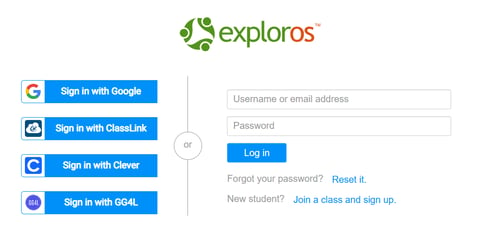
Sign in to the program https://app.exploros.com/login
-
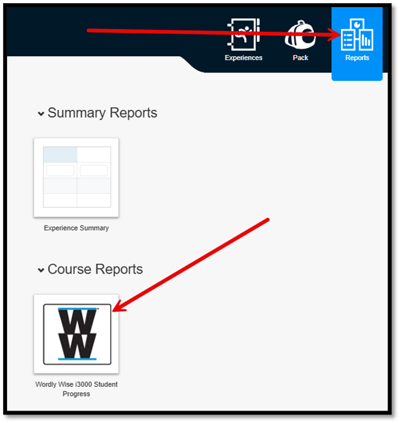
From your Main “All Classes” Dashboard, click the Reports button at the top-right of your screen and select the “Wordly Wise i3000 Student Progress” report.
-
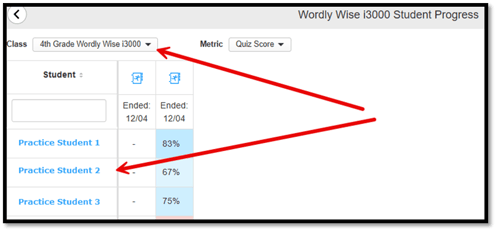
Choose your class from the drop-down menu to view all students in your class. Select a Student
-
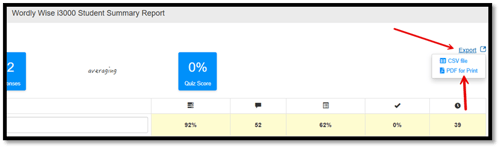
After selecting a student, click the Export button at the top right of the screen. Select export as a PDF or CSV file.
Annual Class License Removal Notice
For most districts, schools, and teachers, starting fresh each school year provides the best experience. To support this, we will remove licenses for all existing classes as we prepare for the next school year. This step helps free up student seat licenses. Please note:
- Removing the license from a class does not delete it from a teacher’s class list.
- It simply removes access to Wordly Wise i3000 content from the class.
- Students rostered in unlicensed classes will no longer occupy a student seat license.
- This ensures that all licenses are available for new classes in the upcoming school year.
Teachers who wish to continue working with the same group of students can relicense their classes through the class settings.
To opt out of the automatic license removal process, complete our Opt Out Form no later than 11:59 pm on June 30, 2026.
Should you have additional questions about this annual cleanup process, please contact our support team.
Frequently Asked Questions
[Everyone] What will happen to our students' data if we choose not to export?
[Teachers] What should I do with my data?
Export your Student Summary Reports for each student. This report shows the scores for all of the assessments for one student. It is a great report to print or email to next year’s teacher.
[Teachers] What should I do with my classes?
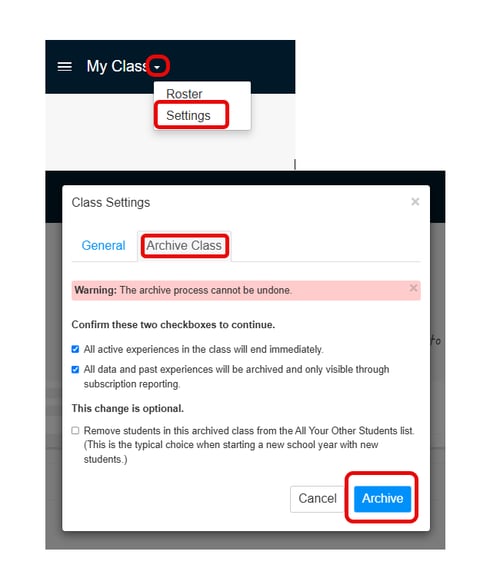
You can clean up your class list by going to your class settings and archiving your class. This permanently removes your class and data from your list.