
Follow these steps to set up Chromebooks for student and teacher access to Reading Assistant.
Please review our Technical Requirements article before setting up your device.
1. Ensure your browser is updated.
To use Reading Assistant, you need to use an up-to-date web browser. Reading Assistant works best when using Google Chrome. Unless otherwise noted, Reading Assistant supports the latest two versions of all major browsers. If your browser displays a message that you need to update your browser, then update your browser by following the prompts on the screen. If the message is still displayed after you update the browser, try clearing your browser cache and history.
2. Always Allow the Microphone
Your browser should ask permission to access the microphone the first time you use Reading Assistant. You should only need to give Reading Assistant permission once.
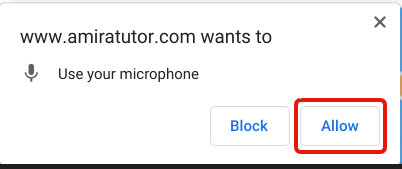
To ensure access to your microphone has been granted, follow these steps:
-
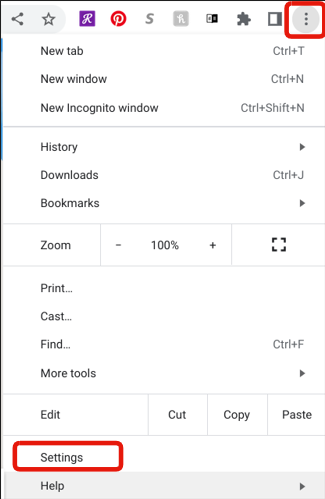
Click the 3-dot menu on the right of the browser
-
Click Settings
-
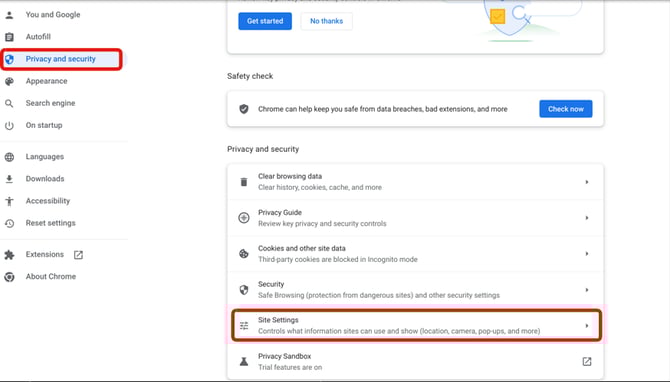
Click Privacy and Security on the left-hand side of the screen.
-
Click Site Settings in the middle of the screen
-
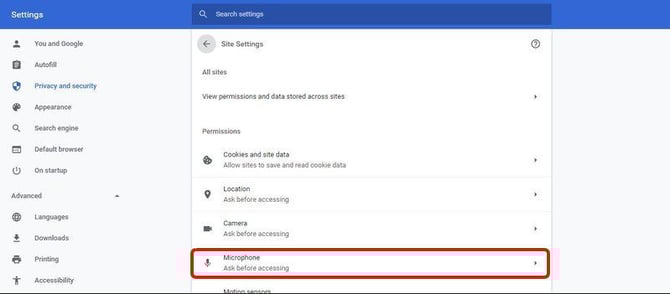
Click Microphone
-
Confirm that student.app.amiralearning.com is listed under Allowed to use your microphone

3. Close Out Other Chrome Tabs
To optimize Reading Assistant’s performance, close any additional programs or websites running in the background while keeping your Ed and Reading Assistant Tutor tabs open.
4. Adjust the Volume on the Microphone
Let's make sure that your Chromebook is set up to hear students. Click the time in the bottom right-hand corner of the screen. Then click the arrow to the right of the volume bar.
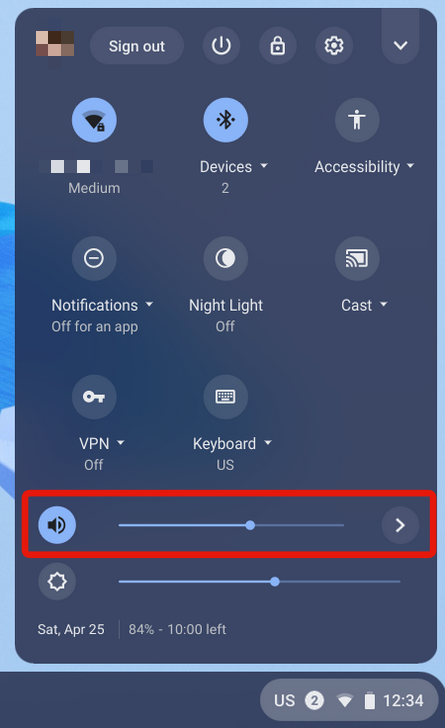
Note: Click the arrow on the right-hand side. The Input Microphone (internal) setting should be at about 50%