Please review our Technical Requirements article before setting up your device.
1. Ensure your browser is updated.
To use Reading Assistant, you need an up-to-date web browser. For best results, Reading Assistant works best when using Google Chrome. Unless otherwise noted, Reading Assistant supports the latest two versions of all major browsers. If your browser displays a message that you need to update it, follow the prompts on the screen to update it. If the message is still displayed after you update the browser, try clearing your browser cache and cookies.
Click here to find out what browser you’re using. To help update your browser, try these links: Chrome, Edge, and Firefox
2. Always Allow the Microphone
3. Ensure any voice recognition software or browser extensions are disabled.
4. Ensure apps have access to your microphone.
-
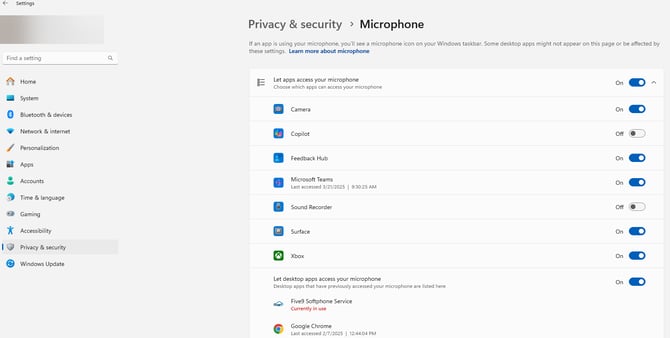
Select Start > Settings > Privacy > Microphone. In Allow access to the microphone on this device, select Change, and ensure Microphone access for this device is turned on.
-
Then, allow apps access to your microphone. In Microphone settings, go to Allow apps to access your microphone and ensure it's turned on.
-
Once you've allowed microphone access to your apps, you can change the settings for each app. In Microphone settings, choose which Microsoft apps can access your microphone, and turn on apps you want to use with it (you'll choose Chrome or Edge here, depending on your browser).
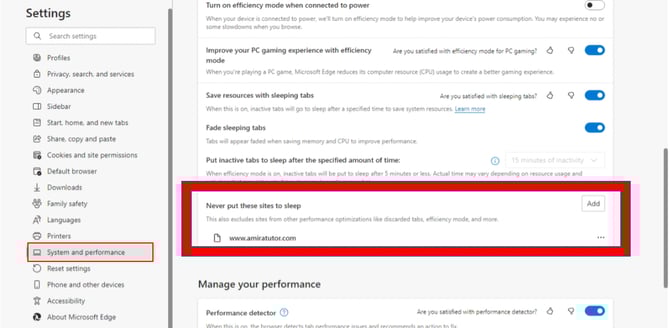
5. For Microsoft Edge users add student.app.amiralearning.com to the never put these sites to sleep list. For Microsoft Edgers users in Canada, add secure.ca.amiralearning.com
-
Navigate to the settings menu
-
Select the system and performance
-
Add student.app.amiralearning.com to Never put these sites to sleep.