
The Align feature connects Reading Assistant practice sessions to the skills taught in teacher-led SPIRE lessons. The platform automatically moves students through the SPIRE scope and sequence, providing ongoing opportunities to practice and reinforce those skills.
It also offers flexibility, allowing teachers to assign students to specific SPIRE levels within Reading Assistant. This ensures students receive decodable texts that align directly with the concepts being taught in their lessons.
How to Get Started - Administrators
1. Request access to the feature.
Contact your Customer Success Specialist (CSS) to have the feature enabled for your account. If you’re unsure who your CSS is, email support@epslearning.com for assistance.
(The feature must be turned on before it will appear in your dashboard.)
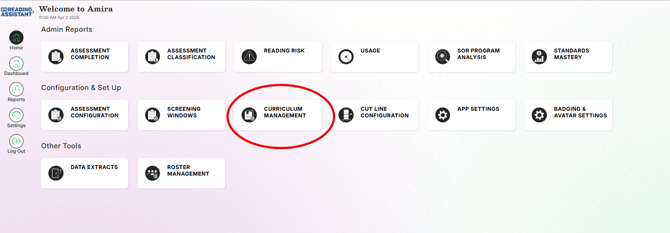
2. Locate the Curriculum Management tile.
Once the feature is enabled, administrators will see a new Curriculum Management tile on their dashboard.
3. Complete initial setup.
Work with your CSS to:
- Import your school or district calendar
- Configure initial settings to align with your pacing and instructional needs
How to Place Students in SPIRE Groups - Teachers
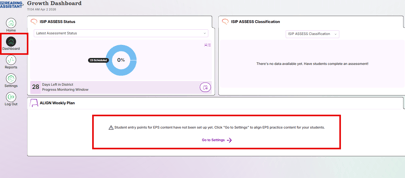
1. Go to Align Settings
- On the Align Weekly Plan tile, click Go to Settings
- Alternatively, click the Settings gear on the left side toolbar
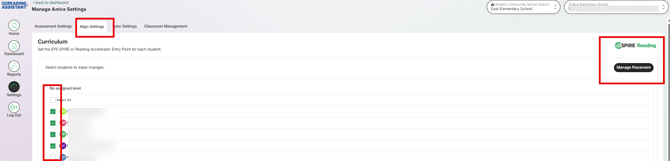
- Select Align Settings, choose the appropriate students, and then click Manage Placement
2. Place Students
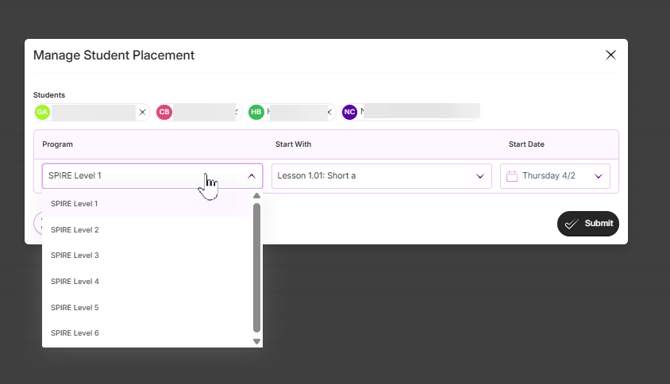
- Select the SPIRE level, lesson, and start date for students, then click Submit.
- Teachers will now see the assignment on their Align Tile
Notes:
- Students with an assignment will now have stories that align with the concept in the assigned lesson that they must read when they login to Reading Assistant. Once they finish their assigned stories, they will then have their typical 5 stories to choose from based on their Benchmark assessment and tutoring practice scores.
- A new assignment will appear every 5 instructional days. This is the default setting and can be adjusted either manually by the teacher or for the entire district from the admin dashboard.
- Assignments can be rescheduled as needed.