For administrators and teachers, this article describes how to use the tools available for managing custom assessments previously created using the Assessment Builder in Coach Digital Compass.
To begin, select Assessment Builder, followed by Custom Assessments.
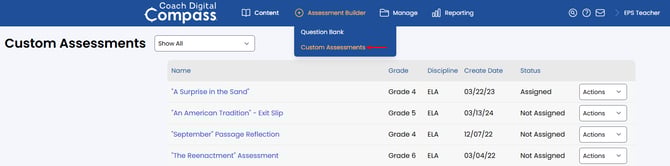
Next, select the Actions tab for the applicable assessment on the Custom Assessments page.
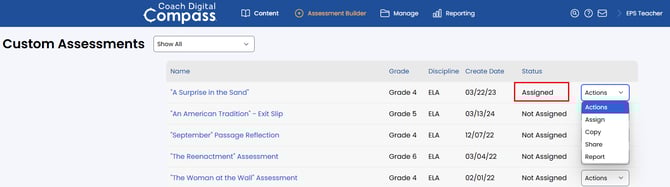
It is important to note that the options for managing unassigned assessments differ from those that are assigned.
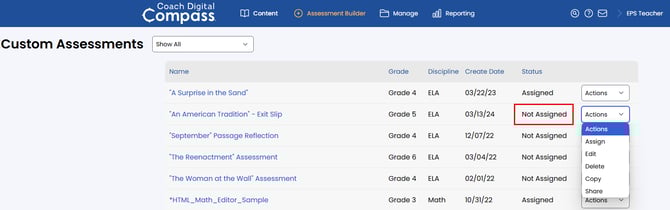
Assign
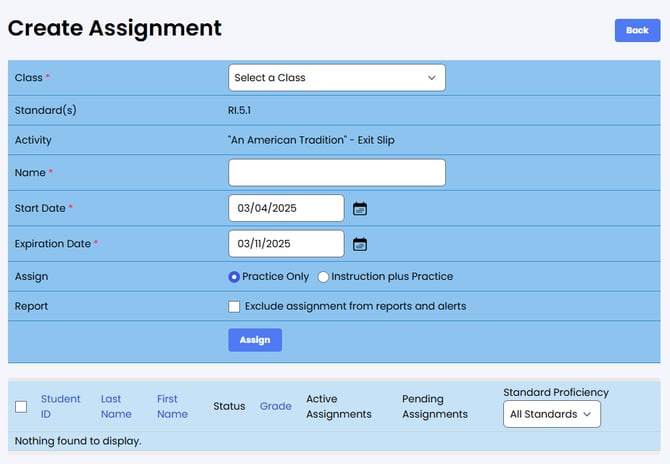
When you select "Assign,” the Create Assignment page will load. From there, select the applicable class. This page will allow you to edit the assignment's name and start/expiration date. The students placed into that class appear at the bottom. Select the checkboxes for the students who should receive the assignment. Then, select Assign.
Edit
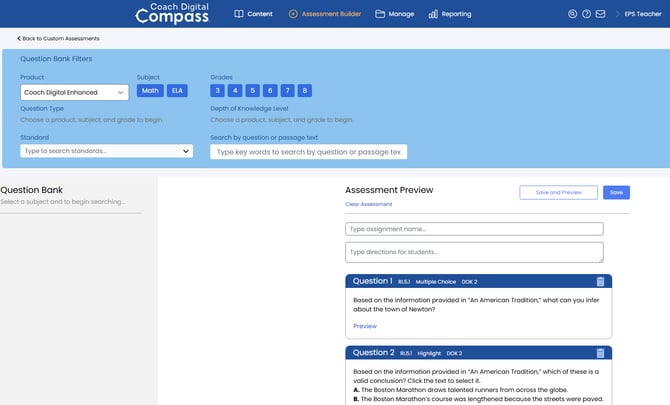
Selecting "Edit" from the Actions tab opens the activity in the Assessment Builder. Here, the criteria for the activity can be revised, and questions can be added or removed. The assessment can also be previewed from this page. (This action is not available for assessments that have been assigned.)
Delete
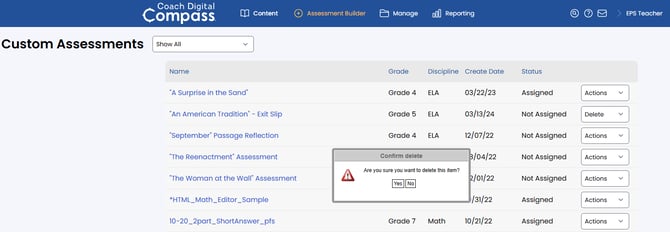
Selecting "Delete" from the Actions tab will activate a pop-up confirmation. (This action is not available for assessments that have been assigned.)
Copy
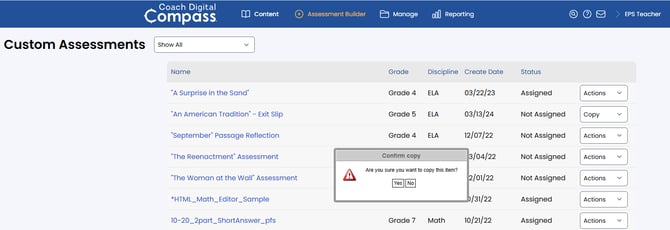
Selecting "Copy" from the Actions tab enables you to duplicate the assessment. Select "Yes" in the confirmation message. The copy will then be listed on the Custom Assessments page.
Sharing Custom Assessments
Teachers can also share custom assessments in Coach Digital Compass with other teachers at their school by selecting "Custom Assessments" from the "Assessment Builder" menu and then selecting "Share" from the dropdown menu. They can then choose which teacher(s) they want to share the custom assessment with. The teacher(s) receiving the custom assessment can then accept or decline the assessment.
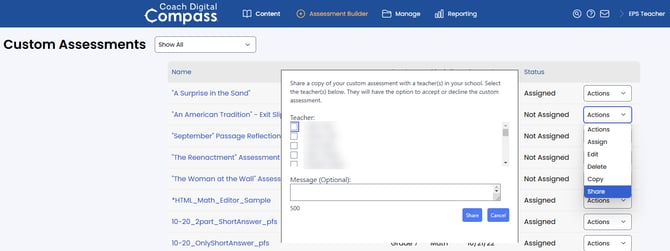
Lock (Administrators Only)
If you have an administrator account in Coach Digital Compass, the assessments you create can be shared with other teachers. You can use the "Lock" button to restrict access to an assessment you have built. This feature restricts students from accessing an assessment before or after the established dates.
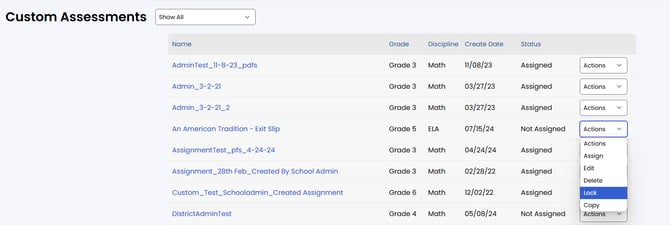
Administrators can unlock an assessment by selecting "Release" from the Actions tab.
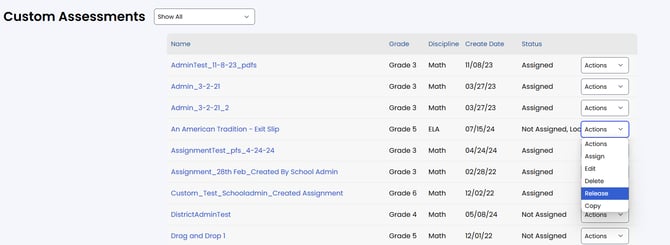
Options for managing assigned assessments follow:
"Assign" functions the same way for both types of assignments. (See illustration above.)
The "copy" feature's process is also the same for both types of assignments. (See illustration above.)
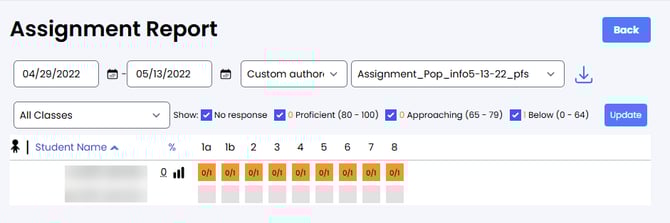
The unique feature available to teachers for managing Assigned assessments is Report. Selecting it from the Actions drop-down of the assignment opens the Assessment Report -- a quick way to view data for that specific activity.
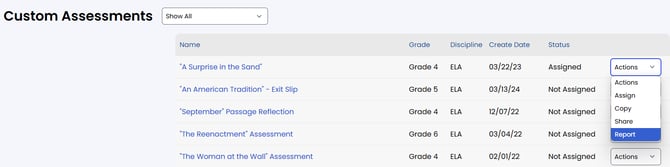
Note the assessment name and the dates it was accessible are across the top. (Administrators do not see this option.)