Overview
This article introduces the Spire Up Teacher Dashboard and its key features.
Within this article, you'll learn how to:
Introduction to Teacher Dashboard
Lesson Completion Status
Lock and Unlock lessons for Students
Accessing the Lesson
Preview Student Activities
SPIRE UP Resources
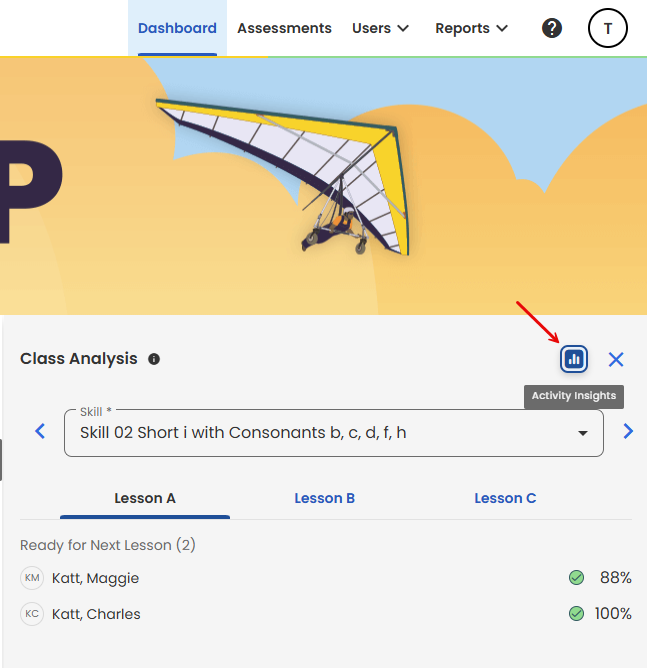
Analyze Student Performance
Activity Insights
Introduction to the Teacher Dashboard
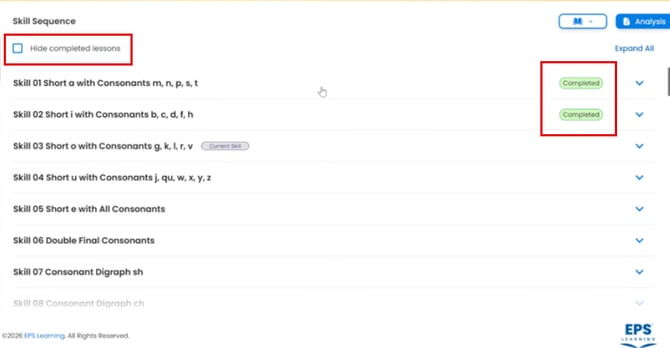
Lesson Completion Status
Lock and Unlock lessons for Students
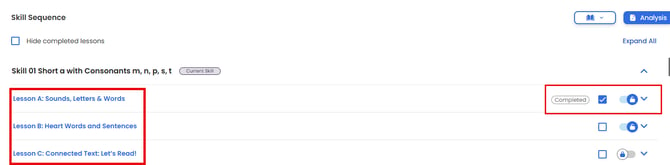
By default, lessons within a skill are locked, meaning students cannot advance to the next lesson until it has been Unlocked by the teacher. Lessons can be unlocked by moving the padlock slider shown below to the right. Lessons can also be marked as Completed by placing a check in the checkbox shown below.
Accessing the Lesson
Clicking the lesson link brings you into the lesson.
Preview Student Activities
You can preview the activities within a lesson by clicking the carrot to the right of the padlock. Click it again to close.

SPIRE UP Resources
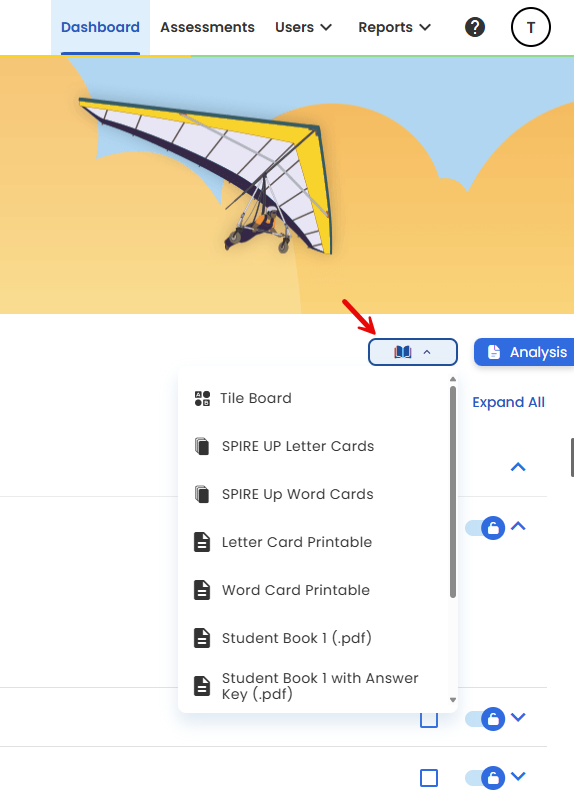
Click the button highlighted below to view the resources loaded into SPIRE UP. These include the Tile board, Letter and Word cards, and the Student Workbook that can be downloaded as a PDF.
Analyze Student Performance
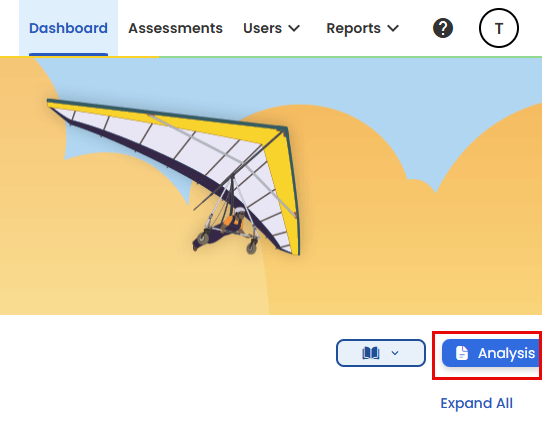
Click the Analysis button to review student performance in each of their completed lessons.
Activity Insights