This is a guide for setting up and importing student .CSV files as part of manually rostering a school. This article does not apply to Clever rostered districts/schools. You can manually add each student account as well, but importing a list of students can save time. By default, teacher accounts are not able to add student accounts. The .CSV template can be found in the program or can be downloaded here: Download Sample .CSV File
-
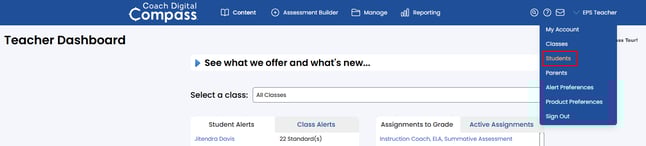
Use the main drop-down menu at the top right and select Students to reach the Manage Students page.
-
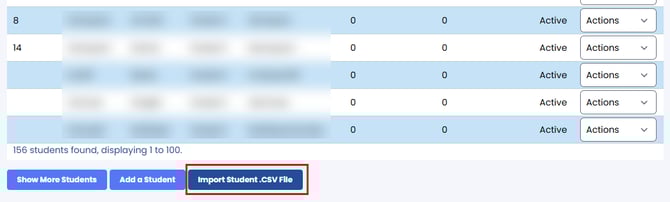
Click Import Student .CSV File.
-
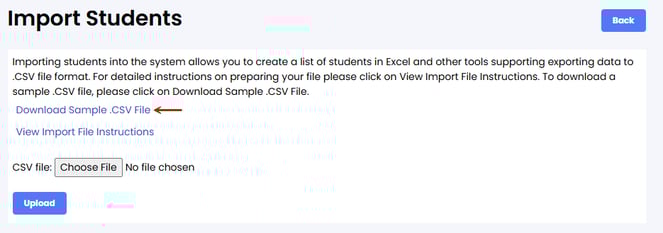
Select the Download Sample CSV File link to download the student import file.
-
Enter the data into the spreadsheet or paste it from a student management system. Required fields are indicated with “(R)”. The header (row 1) must remain the same as the sample .CSV file. Do not rename, move, delete, or add to the column labels or the roster import will not work. Save the file, making sure that the format does not change (it must be saved as a .CSV).

Required Fields:
-
Column A: Action (A/U)
-
"A" represents adding a new student
-
"U" represents updating an existing student
-
-
Column B: Username - This must be unique for your school.
-
Column C: Password
-
Column G: Grade - The word “Grade” will need to be typed before the student’s numerical grade level.
-
This is not technically required but helps organize student accounts for class creation. "Grade 3"
-
-
Column J: Active/Inactive
-
If a student is currently enrolled at your school, you will enter "Active" in this field. If they are no longer enrolled at your school, you will enter "Inactive" into this field.
-
Fields Not Required:
-
Column D: First Name
-
Column E: MI - Middle Initial is usually left blank.
-
Column F: Last Name
-
Column H: Student ID - Helps for organization. Can also be used as a password.
-
Column I: email address - Usually left blank, the email address has no function in the program for student accounts.
-
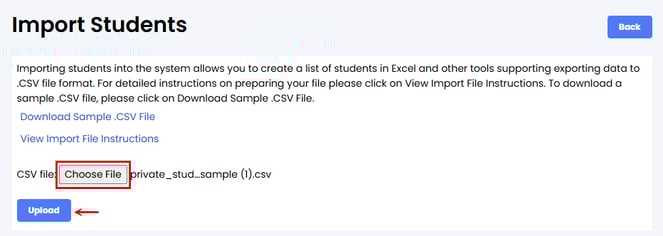
Click Choose File, navigate to the location where the file is saved, and select the saved .CSV file. Click the Upload button to load the file into the system.
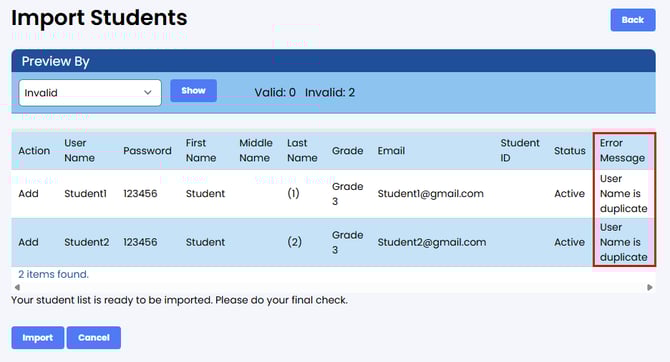
The next screen is a preview of the data, and by default, Invalid rows will be displayed. An error message is provided for invalid rows. Invalid rows will not be imported. To continue, select the Import button to import the valid rows.
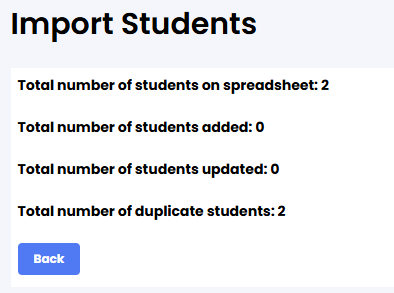
A summary of the import is displayed, and the import is completed.