
In this article...
Explore your options for registering for virtual professional learning and training on the new EPS Learning Professional Learning Site.
Path 1: Through Our Training Website
Link: https://epslearning.arlo.co/w/us/

Path 2: Through EPSLearning.com
Link: https://www.epslearning.com/

-
Select Insights & Resources, then under Featured Resources, select the Events & Webinars page
-
Scroll through the webinar options to find the SPIRE Open Virtual One Day Workshops widget
-
Select Learn More in the SPIRE Open Virtual One Day Workshops widget
-
On the right-hand side under Registration, select the date for which you would like to register. You will be redirected to our Training Website.
Registration Instructions
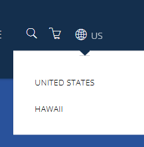 Hawaii residents: Once on our training site, you will need to change your region to Hawaii to receive accurate pricing in the top right-hand corner on the navigation bar.
Once on our training site, select your correct time zone in the Upcoming Live & On-Demand Sessions widget on the homepage to see accurate training start and end times.
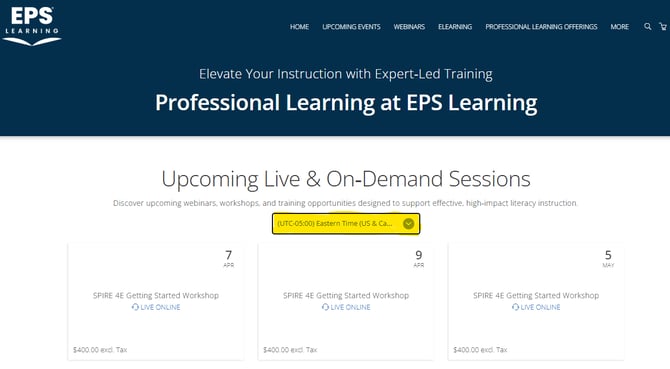
Is the training you want listed in the "Upcoming Live & On-Demand Sessions" section?
-
✅ Yes? Hover over the training for which you'd like to register and select the "Register" button to register or the "More Information" button to see full details.
- ❌ No? Navigate to either the "Upcoming Events" or "Webinars" pages through the top ribbon to view a list of all scheduled sessions
- 💻 Looking for eLearning options? Navigate to the eLearning page through the top ribbon to view a list of all currently available asynchronous courses
If you selected More Information, review the details to ensure the is the correct session you want. If it is, click on the blue Register button to proceed to the next steps. If not, use your browser's back button to return to the previous page.
If you selected the Register button, go ahead and proceed to the next step.
Register for your desired session
If you have not already received your payment voucher from your Purchase Order submission, please STOP your registration and contact the Professional Learning team at professionallearning@epslearning.com
-
In the registration form, complete all details for the participant
-
If you submitted a Purchase Order for the payment instead of paying through a credit card, please enter the Purchase Order number in the space provided
-
If you plan to pay through a credit card, please skip this field
-
-
If you are registering more than one attendee for the same training, after entering the information for the first attendee, select the add another attendee button and complete the registration information for the second attendee.
-
Continue adding attendees as needed until all are added. Once all attendees are added, click Go to Payment.
-
Select the correct order contact from the dropdown menu. You can add a new contact person if the order contact is not registering for the training.
-
Enter all applicable billing information and accept the Terms and Conditions.
-
To pay by discount/voucher code: If you have a discount or voucher code, enter it into the appropriate fields and select apply. If the discount code or voucher code is enough to cover the training cost, you will not be required to enter any credit card information. Once the discount code or voucher code is approved and applied-select "Pay and Confirm"
If there is still a balance due, you will need to follow the steps below for entering credit card information
-
To pay by credit card or cover remaining balance due: Credit card fields will automatically populate once you accept the Terms and Conditions. Enter credit card details in the fields provided. Once all fields are entered, select "Pay and Confirm"
-
The screen will update to a Thank you message. Once the page refreshes to the Thank you message, the registration and payment has gone through and you may exit the page or go back to the EPS Training homepage
-
All registrants will automatically receive the training details directly via email
-
The order contact will receive an order confirmation receipt for the transaction immediately.