In this article...
Reading Assistant Benchmark Assessments play a critical role in understanding student literacy needs. They help determine each student’s instructional reading level, establish data points for measuring growth over time, and collect valuable insights into a student’s overall literacy profile.
Assigning Benchmark Assessments as an Administrator
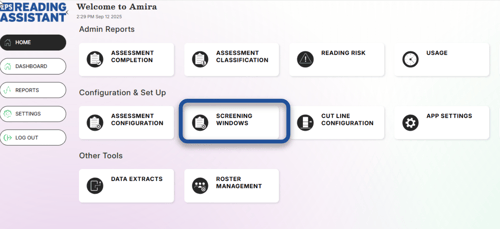
- From the home screen, select "Screening Windows". If prompted, choose either 3 times per year or monthly assessment. Three times per year is recommended.
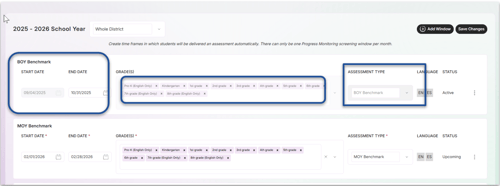
- Enter the beginning and ending date for the desired window. Deselect any grade you would like to exclude. Select BOY, MOY, or EOY (Beginning, Middle, or End of Year).
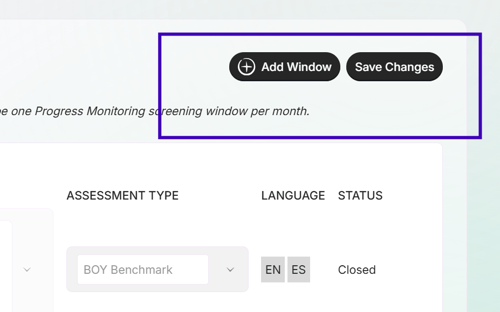
- Click "Add Window" and repeat the process until you have all of your windows set. Once your windows are entered, select "Save Changes"
Assigning a Benchmark Assessment as a Teacher
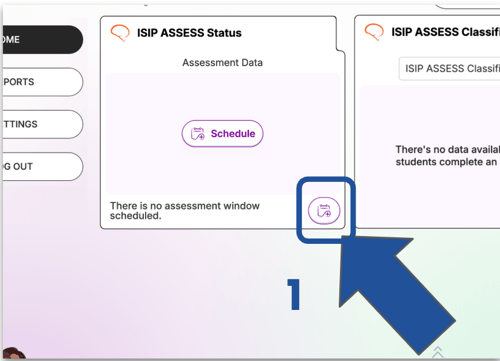
- From the Growth Dashboard, click the Calendar icon on the ISIP Assess Status Widget.
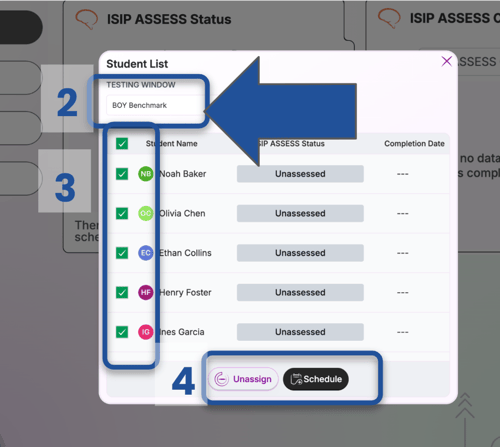
- Select the testing window from the dropdown menu. (BOY, MOY, or EOY Benchmark)
- Select the student name(s) or the whole class.
- Click Schedule
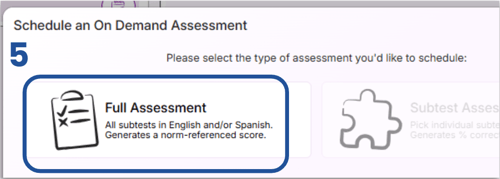
- Click "Full Assessment"
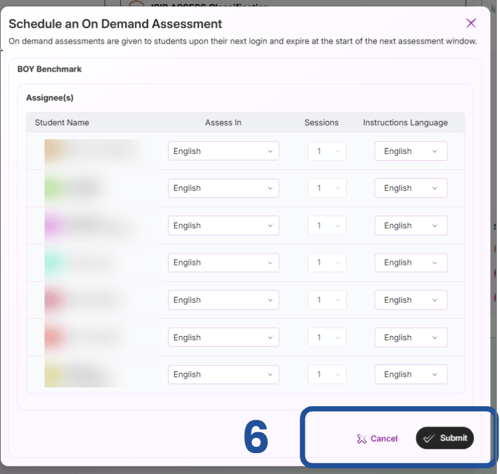
- Make any language assessments necessary and click "Submit"