
Here you will find tips for enabling the microphone on various compatible devices.
Note: Amira is not recommended for use with the Mozilla Firefox web browser or with the Amazon Fire Tablet
Enabling Microphone Permissions
Troubleshooting internal microphone
Chrome
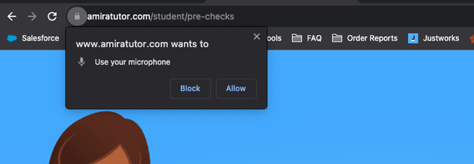
Amira should ask for permission to access the microphone the first-time students launch Amira. You should only need to give Amira permission once. When you launch Reading Assistant, she will prompt students to allow access, and they will see the following message at the top left-hand corner of your browser window: click Allow.
Safari
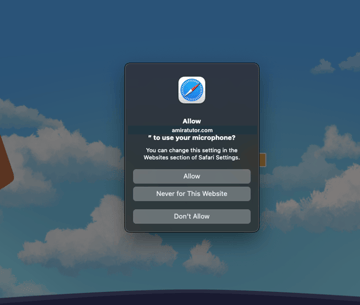
Safari should ask for permission to access the microphone the first time you use Reading Assistant. You should only need to give permission once. When you launch Reading Assistant and you see the following message at the top of your browser window, click Allow.
How do I re-enable access to the microphone in Safari?
If you do not get a prompt to enable your microphone, or you begin using Reading Assistant and get an alert at the beginning of a session about enabling your microphone, follow these steps:
- Start by clicking the small red microphone icon in the browser address bar
- In the pop up that appears, select Always allow on amiratutor.com
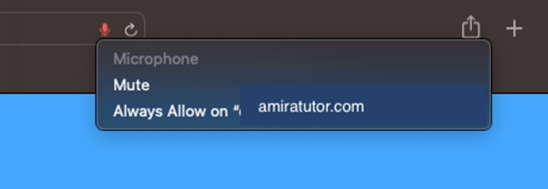
If no microphone displays, you may need to adjust your system settings to recognize a microphone. See troubleshooting instructions below.
Edge
Edge should ask for permission to access the microphone the first time you use Reading Assistant. You should only need to give Reading Assistant permission once. When you launch Reading Assistant, she will prompt students to allow access, and they will see a message at the top left-hand corner of your browser window: click Allow.
Troubleshooting
You may need to change your system preferences to recognize your device’s internal microphone.
Chromebook
Step 1: In the lower right corner, click the system tray to open settings
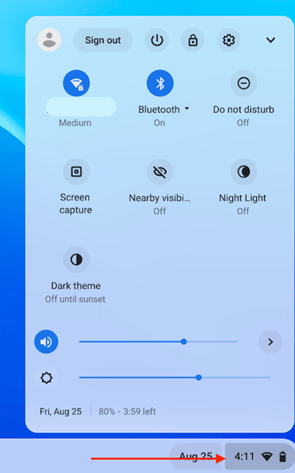
Step 2: Click the > next to the microphone icon to open audio settings.
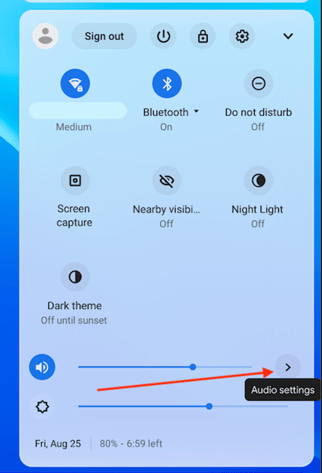
Step 3: Click the Audio Settings Gear
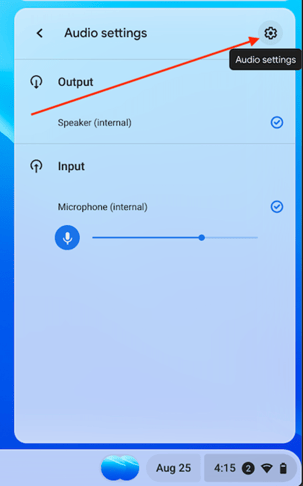
Step 4: Under Input, select the microphone you’d like to use. You can select Microphone (internal) to use the device microphone or select a headset that is plugged into the device.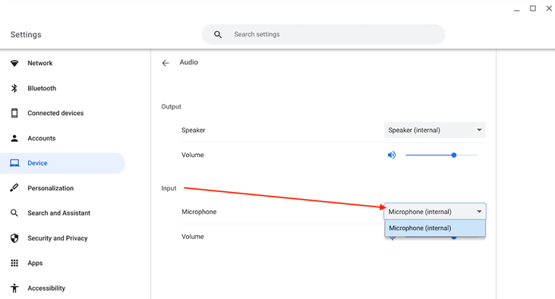
Step 5: Verify that the microphone volume slider is turned up (we recommend about 50%)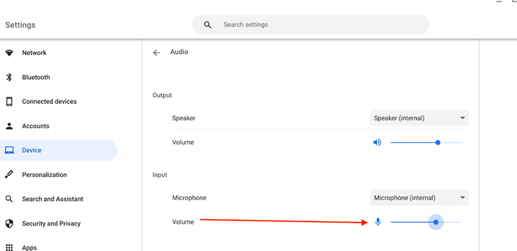
Resetting the Microphone Permissions in Chrome:
If even after you ensure the microphone is enabled and have clicked "Allow" to grant Amira permission to the microphone, a good next step is to try resetting Chrome's microphone permissions. Here is how you can do that
Step 1: Launch Reading Assistant.
Step 2: Click the symbol in the URL bar just to the left of the website address (may look like a slider icon). This will bring up some settings for this particular website domain.
Step 3: One of the settings is Microphone permission. Click Reset permission.
Step 4: Close the tab, and then Launch Reading Assistant again. Reading Assistant will then ask for you to click Allow to allow microphone access in Chrome for this site.
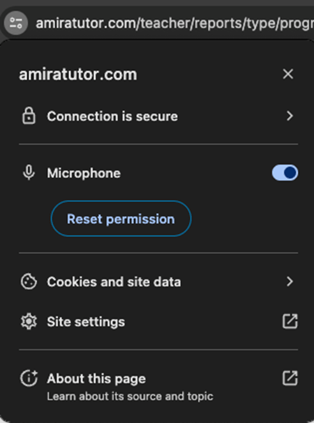
If the above steps don't work, try resetting the permissions another way:
Step 1: Launch Chrome.
Step 2: Navigate to the three dots in the top-right of Chrome > Settings > Privacy and Security > Site Settings > Microphone.
Step 3: Click the trash can icon next to amiratutor.com to delete the microphone permissions
Step 4: Relaunch Chrome and Reading Assistant.
Windows
Step 1: Right click the volume icon on the taskbar and then click the > next to the speaker icon.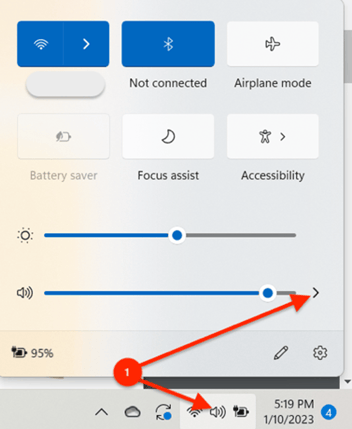
Step 2: In the Volume window, click More volume settings
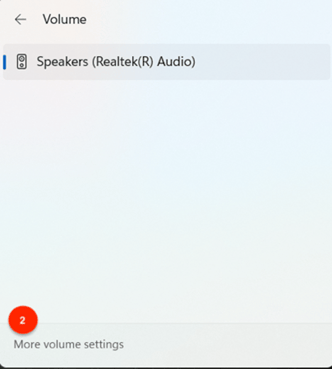
Step 3: In the System > Sound menu choose the microphone you’d like to use.
Step 4: To adjust the volume, use the slider below the Input section
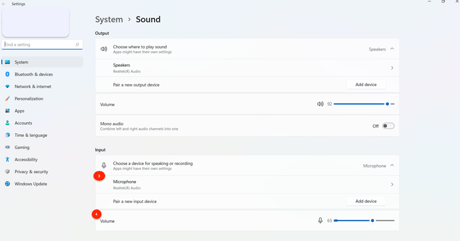
You'll also want to ensure that Chrome is allowed to have access to the microphone, per these below steps:
Step 1: Select Start > Settings > Privacy > Microphone. In Allow access to the microphone on this device, select Change and make sure Microphone access for this device is turned on.
Step 2: Then, allow apps access to your microphone. In Microphone settings, go to Allow apps to access your microphone and make sure it's turned On.
Step 3: Once you've allowed microphone access to your apps, you can change the settings for each app. In Microphone settings, go to Choose which Microsoft apps can access your microphone, and turn on apps you want to use with it (you'll choose Chrome here).
Mac
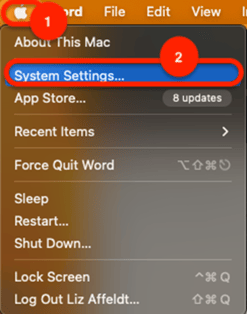
Step 1: Click the Apple icon in the upper-left corner.
Step 2: Select System Preferences.
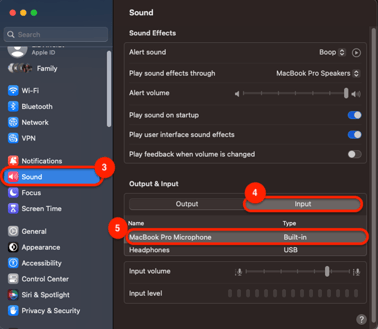
Step 3: Click the Sound option.
Step 4: In the Input tab, select your microphone
Step 5: Adjust volume to at least 50%.
iPad
Step 1: Tap the Settings icon
Step 2: Find Safari within the menu options along the left side of the screen
Step 3: Tap Clear History and Website Data > Clear
Step 4: Scroll down to "Settings for Websites" and click Microphone
Step 5: Choose Ask if you want Safari to request access every time you visit a website - or - choose Allow to allow the use of the microphone without permission every time you visit a website