Introduction
If you are new to Exploros and have not yet created teachers, students, and classes for instruction at your school, this document will provide a step-by-step description of how to use the import functionality.
There are three main steps to the process, which must be done in order:
1. Import teachers.
2. Import students.
3. Create instructional Classes.
NOTE: In a new installation, the grouping of students into instructional classes (for each teacher) may not be known. Thus, a more complete process flow might best be described as:
-
Import teachers.
-
Import students into holding classes (that is, for each teacher, create a single “All my Students” class that contains all of their students).
-
iSPIRE/S.P.I.R.E. STAR only: Conduct placement testing to determine instructional classes.
-
Create classes for each teacher’s instructional Classes.
-
Move students into their respective instructional Classes.
STEP 1: Importing Teachers
Import Users and Rosters (CSV)
School Administrators can create teachers’ accounts on behalf of teachers
-
Click “Users and Rosters” from the School Administrator homepage.

-
Click the arrow next to “Add Users” and choose “CSV import” from the drop-down menu.

-
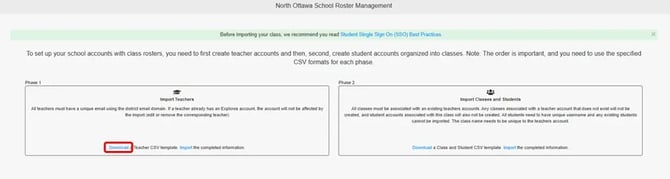
Download the Teacher CSV template by clicking “Download” under Phase 1 Import Teachers
-
Fill in the teacher information in the downloaded CSV file and save changes.
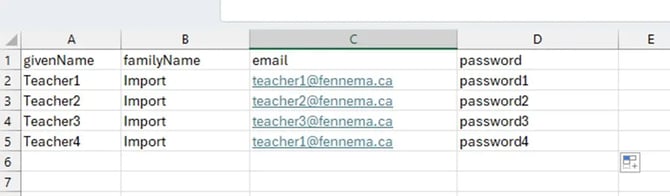
Each teacher is required to have a school-based email address, which will be used as their username.
-
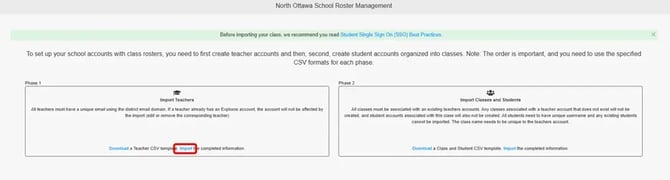
When your file is complete, click “Import.”
-
Select the CSV file to import when prompted
-
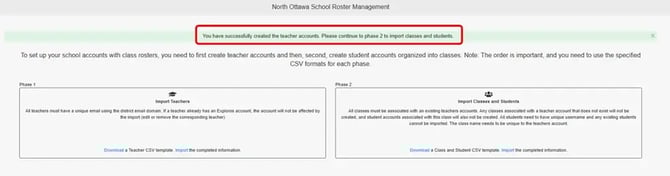
A green banner will appear indicating that the accounts were created successfully, and you can continue to Phase 2
-
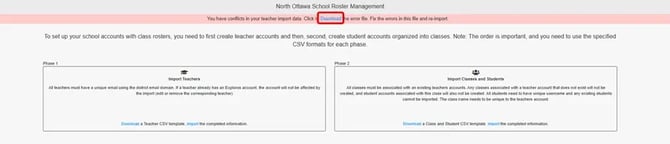
A red banner will be present if your import file has any conflicts. Download the error file to verify any conflicts and fix your import file accordingly before re-importing.
STEP 2: Import Students into Classes
-
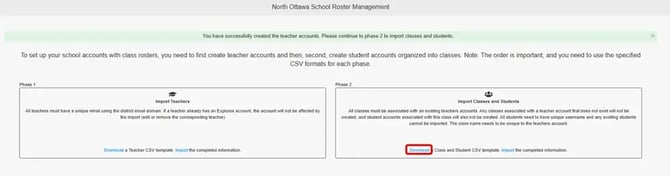
Click “Download” in the Phase 2 Import Classes and Students section to download the CSV template for Classes and Students
All classes must be linked to an existing teacher account. If the associated teacher account does not exist, the class will not be created, and any student accounts tied to that class will also be excluded. Each student must have a unique username, and existing student accounts cannot be re-imported. Additionally, class names must be unique within each teacher's account.
-
Complete the CSV template. Fill in the imported teachers’ email, class names, and students’ information in the downloaded CSV file and save changes.
If a teacher’s instructional groupings are not known ahead of time, create placeholder classes with generic names (e.g., "Smith Group 1"). Initially, assign all students to these placeholder groups. Teachers can later reorganize their students into instructional classes using the “Your Other Students” list.

-
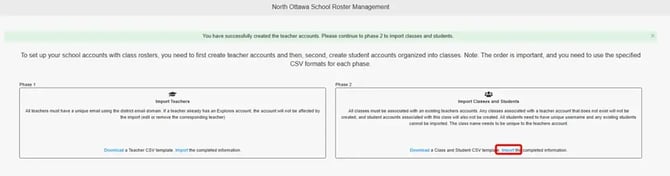
When your file is complete, click “Import.”
-
Select the CSV file to import when prompted
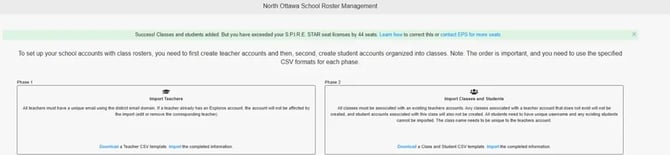
- A green banner will appear if your import was successful.
-
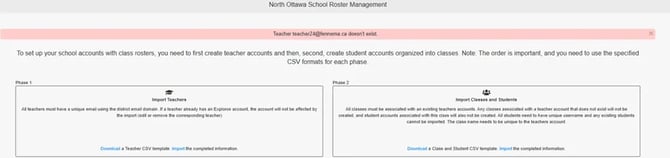
- A red banner will be present if your import file has any conflicts. Verify and review any conflicts and fix your import file accordingly before re-importing.
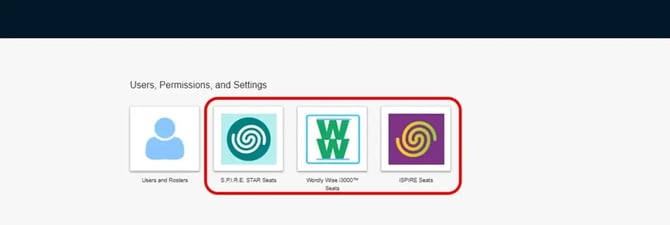
You can view the Classes you just added by selecting your program specific Seats icon from your homepage
STEP 3: Teachers Create their Remaining Instructional Classes
After the initial student import, teachers must understand how their accounts and classes have been set up. In many cases, all of a teacher’s students will have been placed into a single generic class. Teachers will now need to create their instructional classes.
The structure of these instructional classes will depend on the specific service being used:
· iSPIRE and SPIRE STAR: Students are typically grouped into small instructional classes based on their level, as determined by the Placement Test.
· Wordly Wise i3000: Students are generally grouped by grade level and class.
Be sure to provide teachers with their login credentials along with instructions on how to access their accounts and create their instructional groupings.
Instructions for teachers
-
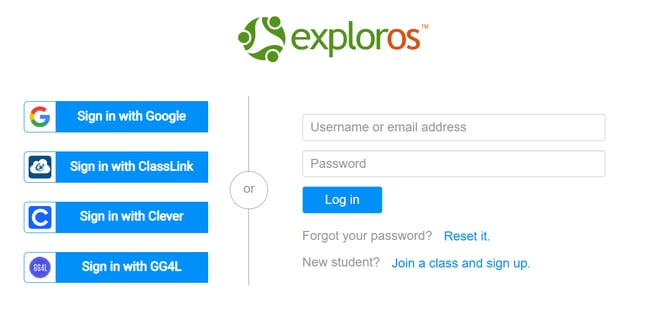
Log in with your teacher credentials.
-
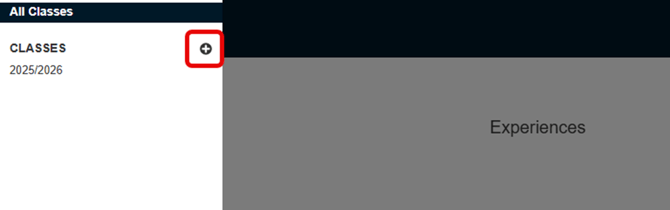
From the top left corner, click on the three horizontal bars beside “All Classes.”

-
Add a class by selecting the “+” sign.
-
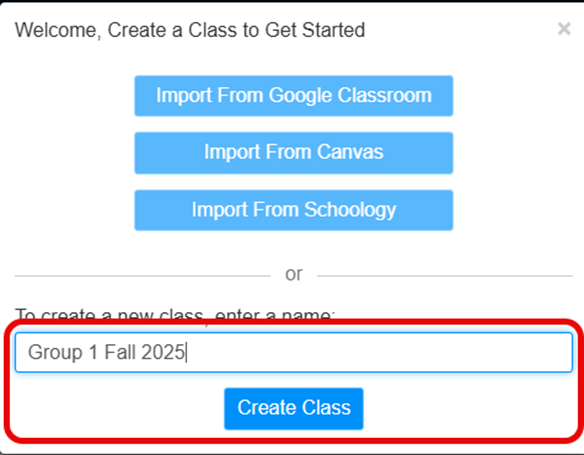
Give your class a name and click “Create Class”
-
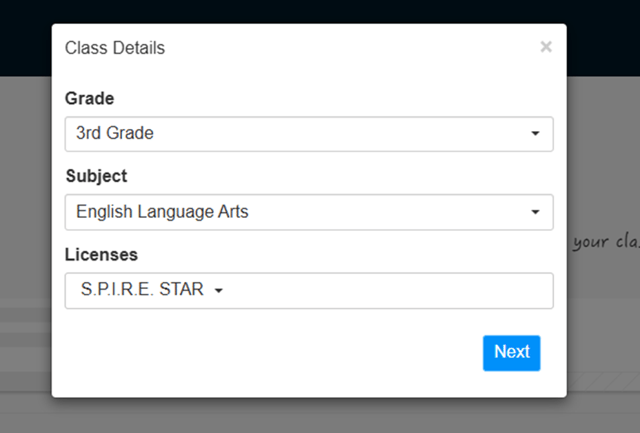
Fill in the details for your first class by selecting the best available option from the drop-down menus for each section, and click “Next”
-
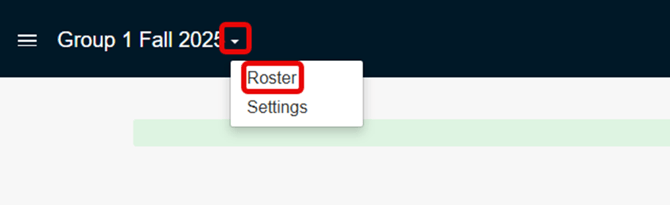
Your Class Home Page will open. To add students to this class, click the little arrow beside the class name and select “Roster.”
-
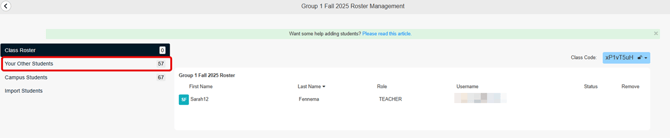
The Class Roster screen will open. Select “Your Other Students” to view the list of students
-
A list of all your imported students will appear. To add a student to an instructional class, click the “+” sign next to their name. Continue this process for each student in the group, based on the instructional groupings you previously identified.

-
Click “Class Roster” to see the students you added to your class.

-
Repeat the above steps to create a class for each instructional group.
If you can’t find a student, select the “Campus Students” list to see if they are listed here

District Administrators Importing Teachers and Students
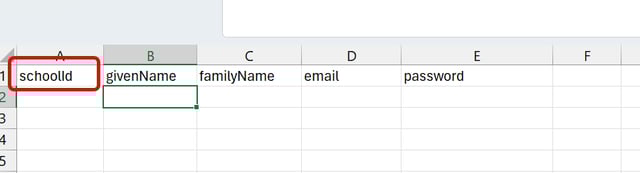
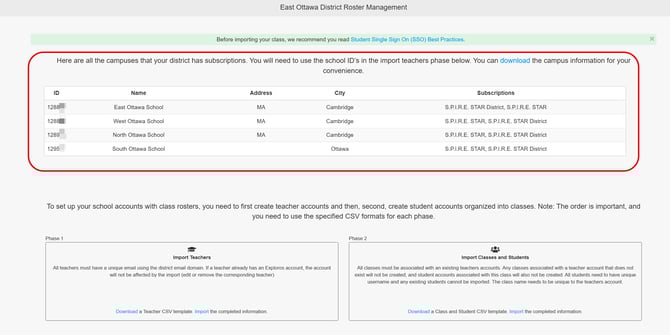
All steps are the same as those for a School Administrator except for the addition of a required SchoolID column in the District teacher import template.
The list of schools and School IDs can be found on the Roster Management page
District teacher import template CSV