This article is applicable for District administrators that are rostering manually.
Viewing Schools
-
Log into EPS Connect and, if necessary, select the applicable program.
-
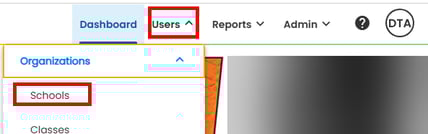
On the Navigation Bar, select USERS > ORGANIZATIONS > SCHOOLS
-
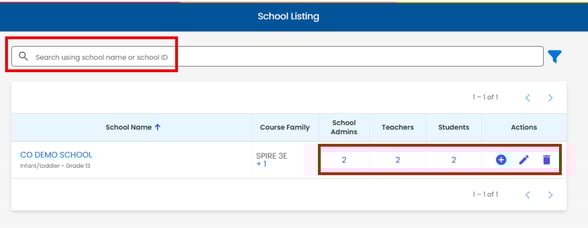
Locate a specific school by using the SEARCH or FILTER options.
The School Listing includes School Name, Course Family, School Admins, Teachers, and Students. Selecting any of the blue links will give you more information about that field. Selecting the School Name will open the School Details page for viewing/editing.
Adding Schools
-
Log into EPS Connect and access the applicable program.
-
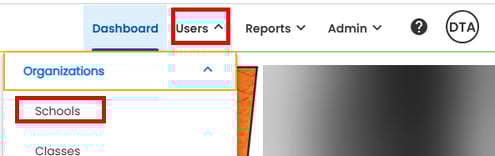
On the Navigation Bar, select USERS > ORGANIZATIONS > SCHOOLS
-
Select CREATE NEW SCHOOL.

-
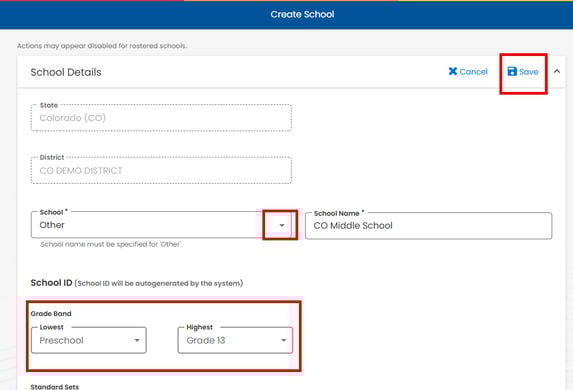
From the drop-down menu in the school field, select the school from the drop down or select Other if you don't see the school listed.
-
Enter the School Name, select the highest and lowest grades from the drop-down menus, and select Time Zone from the drop-down menu. Select Save.
The Save button will not be enabled until all required information has been entered.
The Courses, School Admins, and Teachers actions will not be accessible until the School Details have been saved.
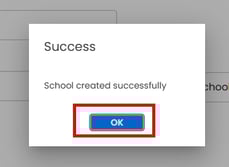
A pop-up will confirm that the School was created successfully. Select OK to close.
Removing Schools
-
Log into EPS Connect and access the applicable program.
-
On the Navigation Bar, USERS > ORGANIZATIONS > SCHOOLS
-
Locate the school by using the SEARCH or FILTER options.
-
Under Actions, select the delete school icon
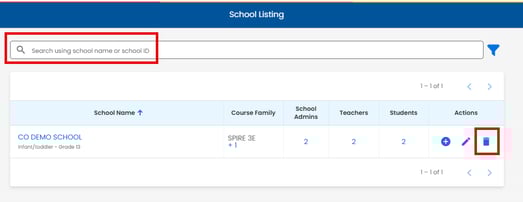
Deleting the school will delete all records of the school, including all licenses.
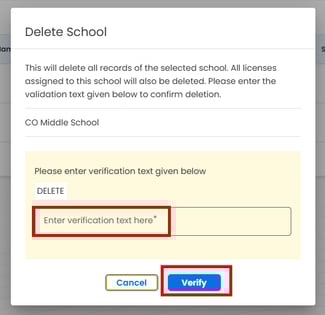
- You will be asked to enter a passphrase to confirm the deletion. After entering the phrase, select VERIFY.
-
Confirm the deletion by selecting YES.
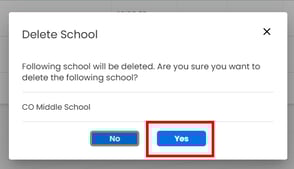
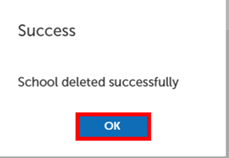
A pop-up will confirm that the school has been deleted successfully. Select OK to close.