
Resetting a Student's Password
You can reset your student’s password.
-
Log into EPS Connect and access the applicable program.
-
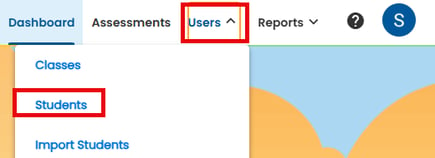
Select USERS > select USER ROLES > select STUDENTS to open the student listing
-
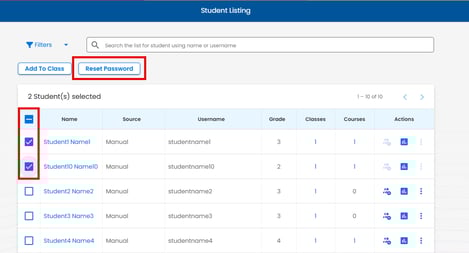
Select the checkbox next to the student(s) name, select the RESET PASSWORD button.
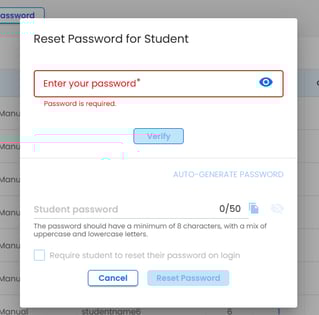
The Reset Password for Student pop-up will be displayed:
-
Type your teacher password in the Enter your password field, then select the VERIFY button.
- If your account was created using Google you will not be prompted to enter your password, select verify to verify your Google account.
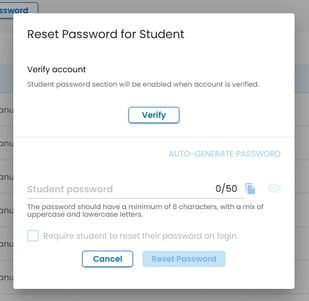
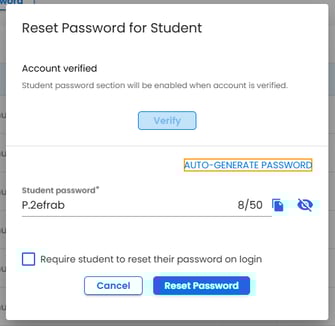
The student password field will enable:
-
Do one of the following:
-
Enter a password for your student.
-
Click the AUTO-GENERATE PASSWORD link.
-
-
Click the RESET PASSWORD button.
-
If needed, click the checkbox Require student to reset their password on login