These instructions are for districts not using a roster sync and for users logged in as a District Technical Admin (DTA).
Bulk User Import
-
Log into EPS Connect and select the applicable program from your Dashboard.
-
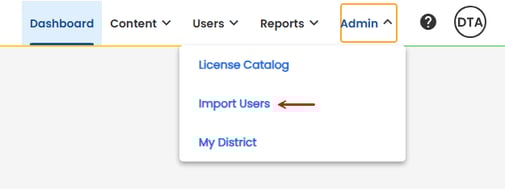
Use the Global Navigation Bar to select ADMIN > IMPORT USERS
-
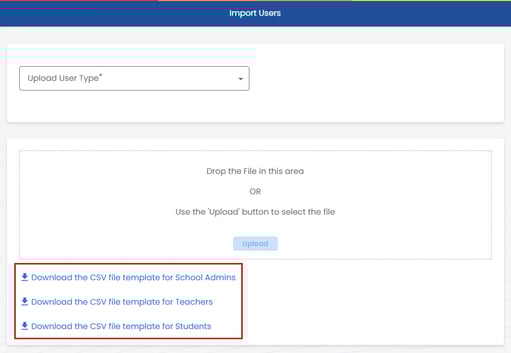
Download the CSV file template(s) for the user type(s) you will be importing.
-
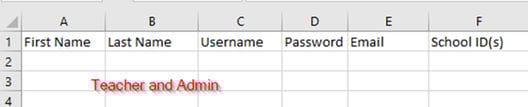
Enter the required information and save the file as a CSV. If you have trouble uploading an Excel CSV with the default file type, save it with the file type CSV UTF-8 (Comma delimited) (*.csv)
-
School ID can be found on the School Details page.
-
A comma must separate Multiple School IDs.
-
Email is not required for students unless the district is using Google SSO.
-
The grade must be within the grades associated with the school.

-
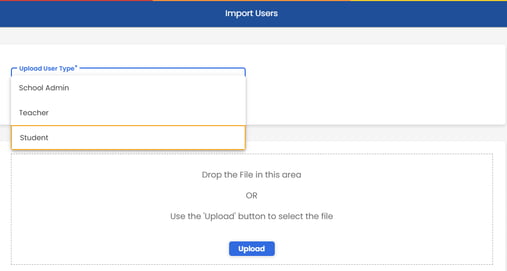
After entering information into the CSV file, upload the template by first selecting the User Type from the drop-down menu.
-
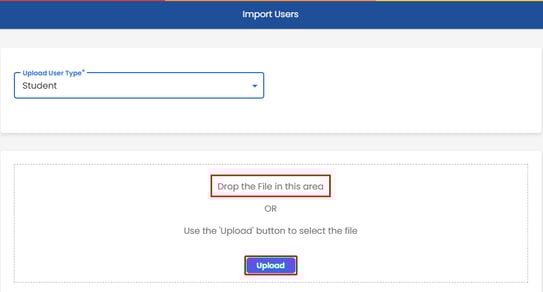
Drag and drop the CSV file from its location on your computer or select the UPLOAD button to select and upload the file.
Note: The UPLOAD button and drag and drop function will not be enabled until a User Type has been selected.
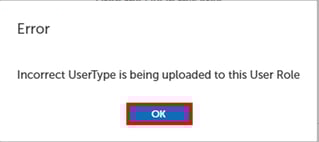
If you attempt to upload an incorrect template for the User Type, you will receive a pop-up error. Select OK to close the pop-up and either change the User Type or select the correct template type.
-
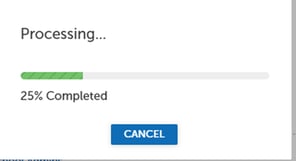
A pop-up shows the progress of the upload. Select CANCEL if you wish to stop the import.
-
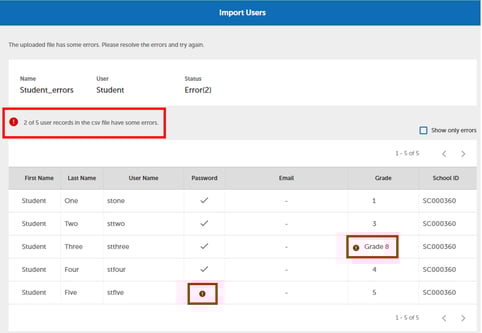
A validation list will show any errors in the uploaded file. If any errors are found, they must be corrected, and the file must be uploaded again.
-
Passwords should contain at least one uppercase and lowercase letter, a number, and special character.
-
Student passwords must be at least 8 characters.
-
Teacher and School Admin passwords must be at least 12 characters.
Student Grade Levels are entered numerically, grades 1-13, or as these values:
PK = Prekindergarten
TK = Transitional Kindergarten
K = Kindergarten
After correcting any errors, UPLOAD the file again. You will receive a message that there are no errors. Select CONFIRM to import the users.
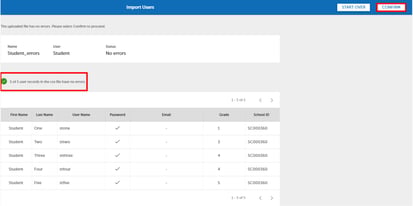
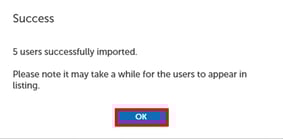
You will receive a pop-up saying that the users were successfully imported. Select OK to close.