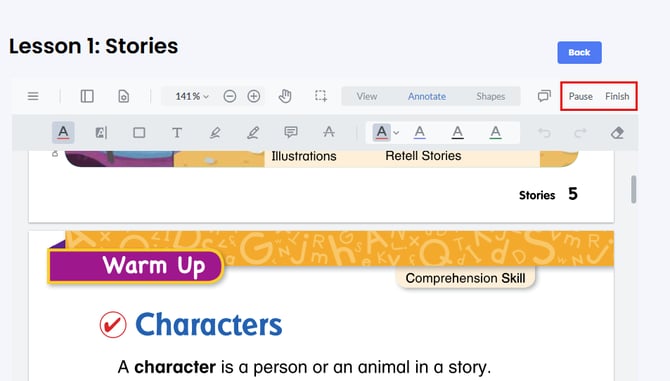
The Coach Digital Compass Mark Up and Annotation Tool allows users to use annotations, a highlight tool, a write-on tool, and grade documents (teachers and admins). This document will give you and your students a review of the new tools available to teachers and students. We strongly recommend that you review some of these resources with your students to provide them guidance in marking up the assigned content. The primary tool that you will want to emphasize is the Free Text Tool, which is found in the Annotation submenu. This guide will cover how to access that resource, as well as other helpful tools within the mark-up tool menu.
After a PDF lesson or assessment is given (and the “Assign PDF Interactively” option is selected), the student will have a very similar view as the teacher. Most of the tools are intuitive and can be reviewed during a class presentation. All the sub-menus help teachers and students define what tools the user wants to use.
There are two basic types of tools, the Layout tools and the Write-on Menus. Let’s take a closer look at some of the tools most frequently used. Some of them are more intuitive, so we will walk through some of the important buttons starting from the left.
Layout Menu
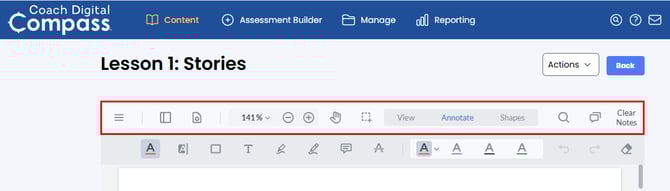
The buttons at the top of your PDF editor will provide you with a menu of tools that will help you view the resource the way that you want to see it. You can download the document, change your view pages, set the page settings, zoom in and out, pan, and select portions of the PDFs.
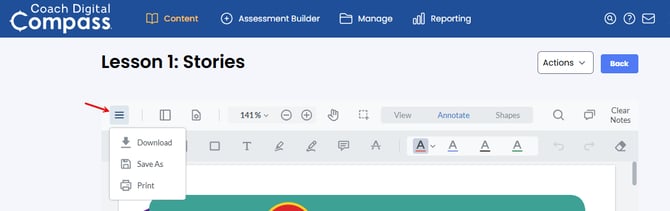
Menu Button
This button gives you the ability to Download, Save As, or Print. The Save As and Print options will be helpful if you add notes.
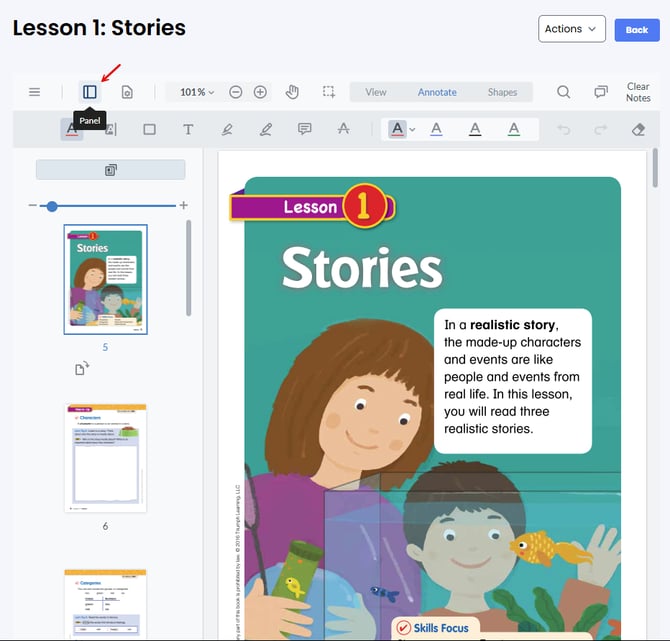
Panel Button
This button allows you to see the pages laid out in a side menu. You will be able to choose any of the pages or reorient (flip) those page
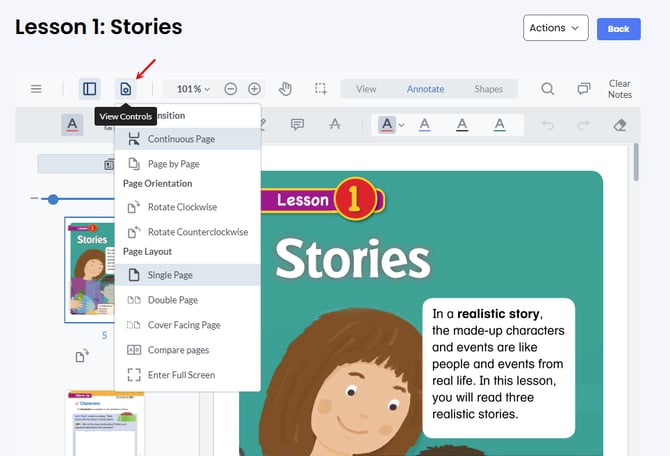
View Controls Button
This will give you the ability to edit how the page transitions (it is recommended to use page by page), adjust the page orientation (rotate) and change the Page Layout (single page, double page, etc.)
Write-On Menus
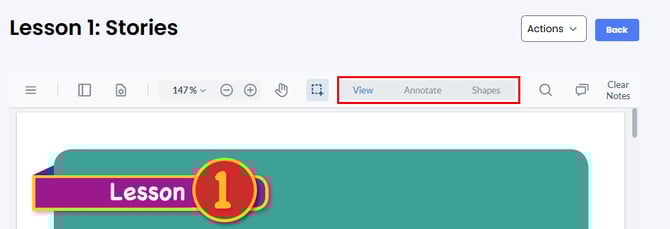
The Write-on Menu includes the View, Annotation and Shapes button. We recommend starting with the Annotation button
View
The View button allows the user to use the markup and write-on tool, so the user can preview their responses.
Annotate
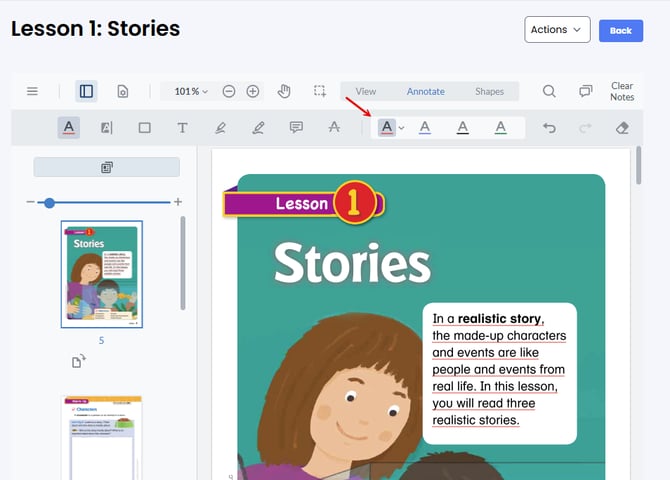
This is the primary resource that will allow you to highlight text, write answers, and make comments, as well as other resources. Please note that not all tools are listed, but the most used resources. Each resource will allow you to adjust the color of your selected tool.
Shapes
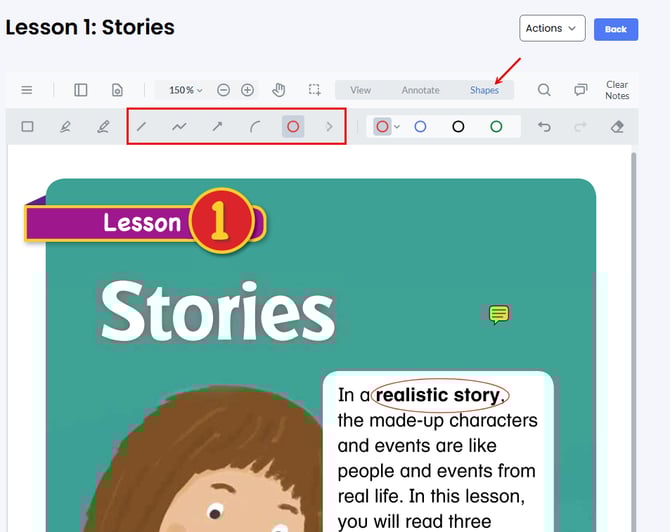
The Shapes section pulls up a menu of tools that relate to shapes. Below are the buttons that you will see. You can add and paste these shapes on the documents for your students. Each shape’s color can be adjusted.
Underline tool
This tool allows you to underline words within the document.
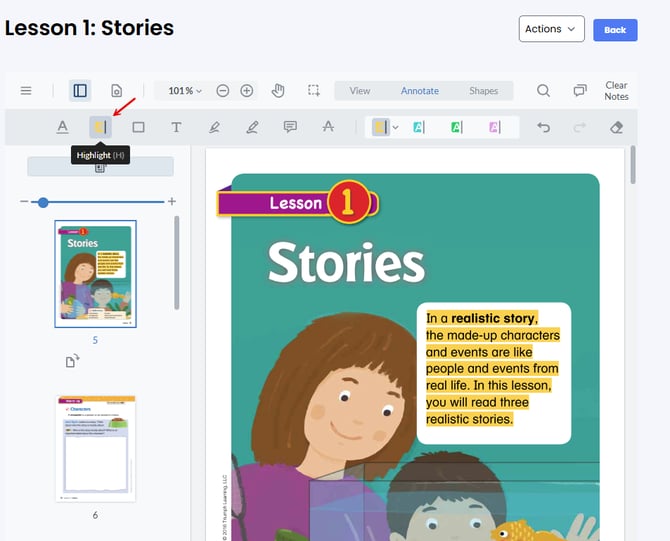
Highlight Text tool
The highlight text tool allows you to highlight the text of the lesson. You can also adjust the color of the highlight tool.
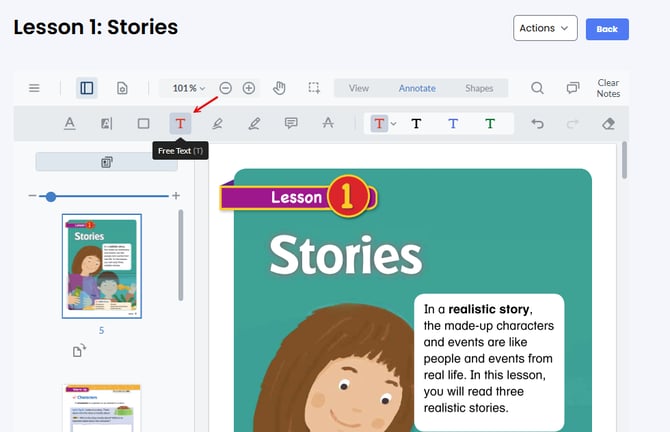
Free Text Tool
This tool allows you to add text to the document. You can answer questions and add text to the document. This will likely be the most used tool, so I would review this resource with your students.
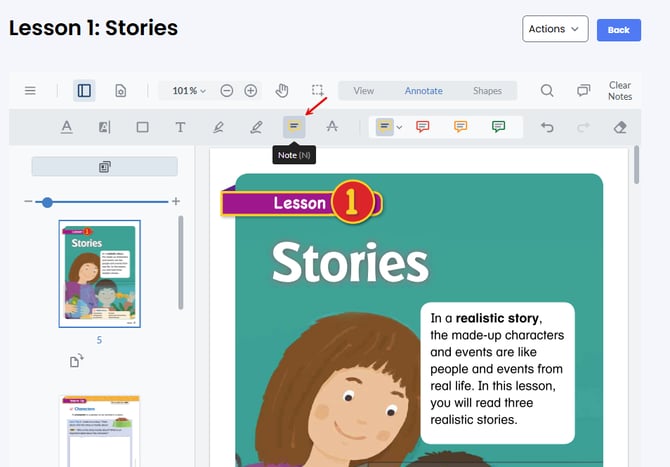
Note tool
This tool allows users to add notes. This can be especially useful when giving lessons to students. The color of the notes can be adjusted.
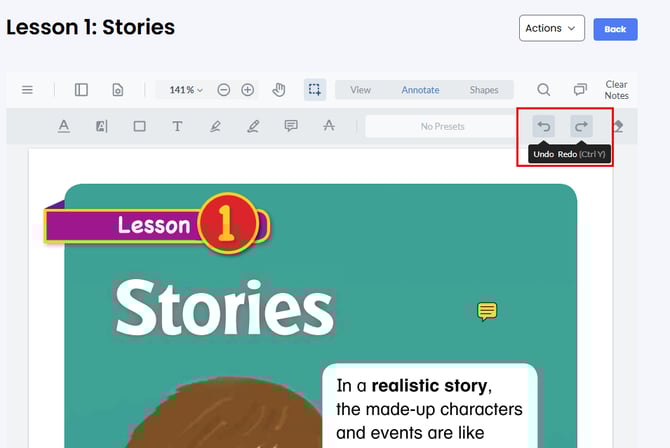
Undo/Redo buttons
These buttons allow you to Undo and Redo edits that you’ve made to the document.
Eraser
The Eraser button allows you to erase edits made to the document.
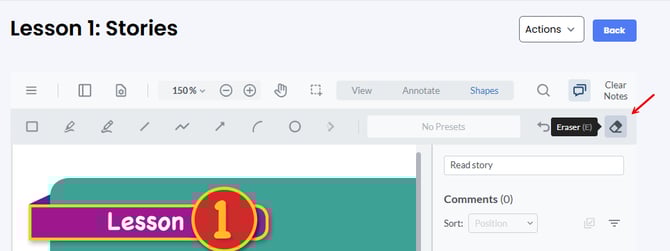
Additionally, we have other buttons that allow for some basic functions for the resource.
Search (Teacher Only)
The Search button allows teachers to search for keywords within the lesson.
Comments button
This allows you to view all of the comments/annotations that have been made in the document.
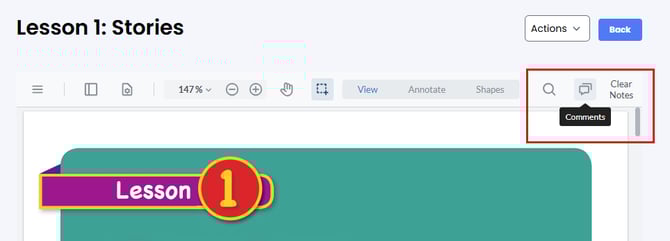
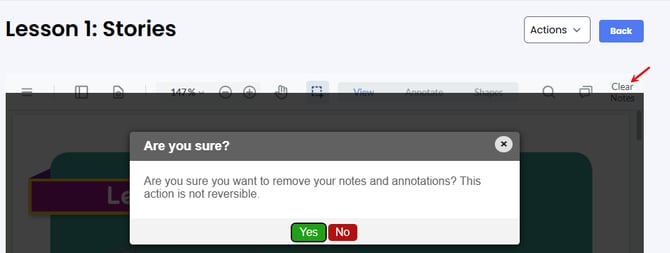
Clear Notes button (teacher only)
Allows you to clear all notes added to the document. You will be asked to confirm. This action is not reversible.
Pause/Finish (Student only)
This tool allows a student to pause their progress by clicking Pause or submit their responses by choosing Finish