
The Coach Digital Compass markup and annotation tool enables teachers to annotate PDFs with a highlight tool, text-box tool, and drawing tools. Students can also use these tools to mark up their work and submit it to teachers for grading. This update enhances Coach Digital Compass, allowing administrators, teachers, and students to engage with previously static materials in a digital format.
-
Teachers and administrators can annotate lessons during class presentations and make notes for future reference.
-
Students can annotate and provide answers on PDFs that teachers can then grade within Coach Digital Compass.
Assigning and Grading Interactive PDF Content
Two types of PDF content can be assigned and annotated.
Lessons (PDF only)
Assign from the Library
Choose content, select subject and grade, and choose Library
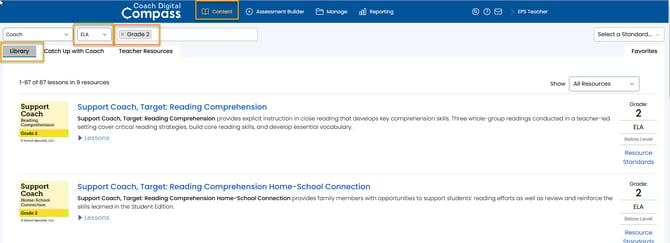
Find the PDF-Only lesson (*content without the digital practice pointer icon ) and choose "Assign."
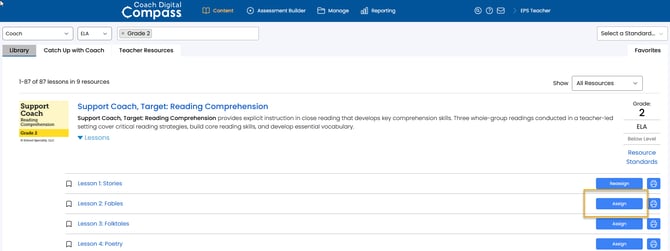
On the Create Assignment page. Choose your class, set the assignment name and start/expiration dates, and select students. The platform will default your selection to "Assign PDF Interactively." This will allow your students to mark up the content. If you deselect this feature, students will be assigned a "read-only" assignment.
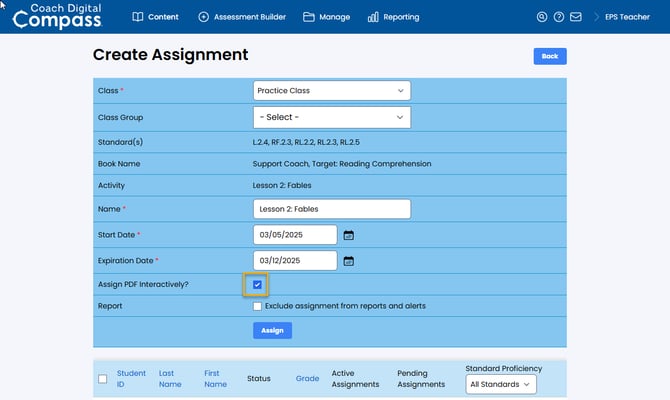
Choose Assign. The assignment will appear in the student's Assignment List. The platform will track the Assignment in the Teacher Dashboard, within Active Assignments, Assignments to Grade, and the calendar.
Teacher Resources
Students can be assigned Print-Only Assessments (and other specific content) from the Teacher Resources tab.
Select Content, choose the subject and grade, pick Teacher Resources, and expand the Print-Only Assessment. These assessments can then be assigned to your students.
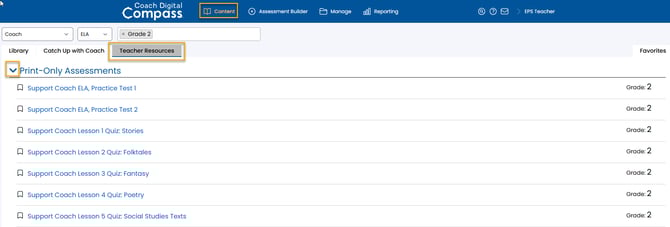
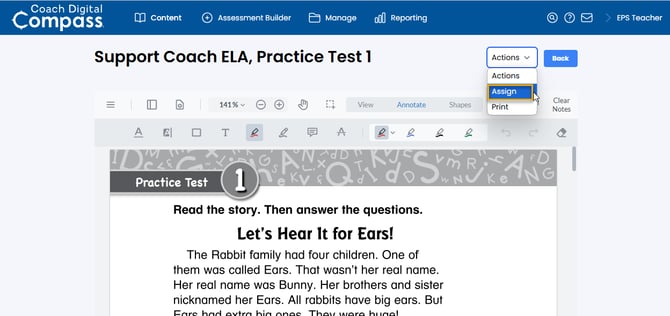
Open the resource, select the "Actions" button, and choose "Assign.”
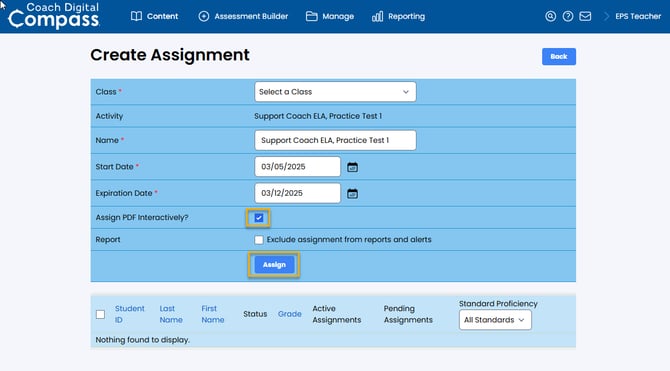
The system will bring you to your Create Assignment page. Choose your class, set the assignment name and start/expiration dates, and select students. If you choose "Assign PDF Interactively," students can mark up the content. If you deselect this feature, students will be assigned a "read-only" assignment. Choose Assign.
Teacher Scoring
After your students complete an assignment, you can grade their work. Assignments that need grading can be accessed from either of the two screens.
-
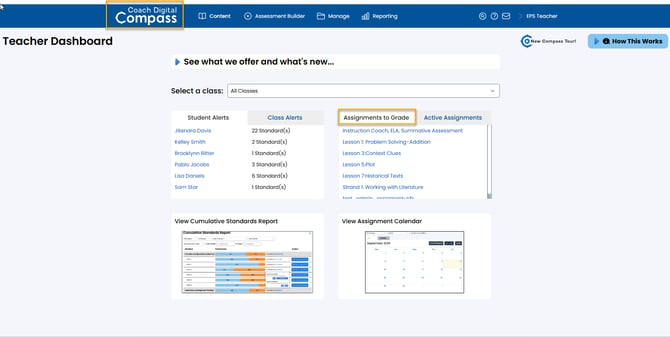
Under the "Assignments to Grade” list on your main Teacher Dashboard.
You can access your Dashboard anytime by clicking the Coach Digital Compass icon located at the top left of your account.
-
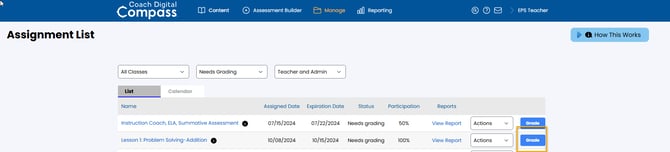
Select Assignment List in your Manage tab

Choose Needs Grading from the drop-down menu.
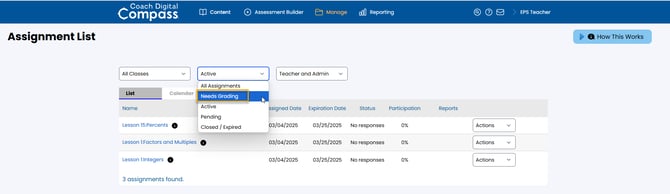
Select Grade next to the Assignment you want to review
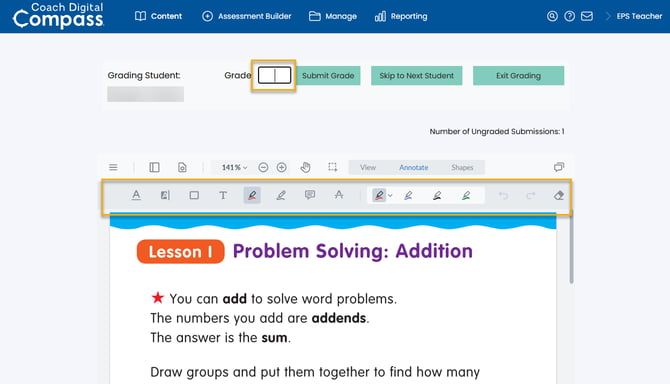
Review students' work.
You can annotate the pages and add notes for the students.
Enter the total grade for your student and choose" "Submit Grade"
Your students will then see the graded assignment with your comments under their Assignments tab.
Grading applies to the entire assignment, not individual questions. Students' scores will be shown in the Assignment Report and the Export Student Scores report. However, these grades will not affect the Cumulative Standards Reports.