
In this article...
This article walks you through several important steps that both administrators and teachers should take to ensure your Coach Digital Compass data preservation at the end of each school year or instructional cycle.
End-of-Year Data Export
EPS recommends you download your student’s data before the end of the school year. This can be done as an administrator or as a teacher. We recommend exporting the Student Scores Report and the Standards Summary Report.
Step-by-Step Instructions: Student Scores Report
This report exports the final scores for all student assignments. It provides a detailed breakdown that includes the school, class, teacher, assignment name, student name, and the percentage score for each assignment.
- Log in to Coach Digital Compass at https://coachdigital.com/
-
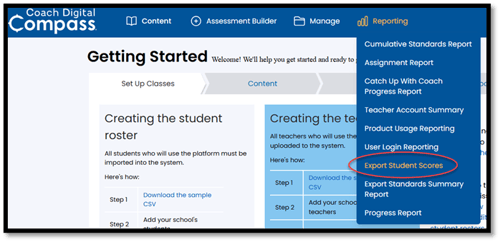
Hover over Reporting and choose Export Student Scores.
-
On this dashboard, you can filter your report by teacher, class, student, and/or assessment type. You also have the option to include Co-Teacher Data by selecting the corresponding checkbox.
If you want to export all assignments and assessments, leave the filters unselected. However, we strongly recommend selecting the “Only Export Graded Assignments”.
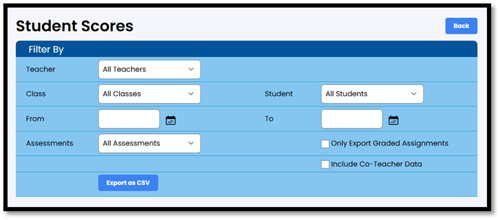 Click Export as CSV to download the full report.
Step-by-Step Instructions: Standards Summary Report
This report is based on the standards covered in the program. It aggregates all student data to provide a breakdown of the percentage of questions correct versus missed by your students.
-
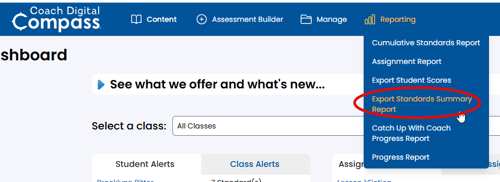
After logging into the program, hover over Reporting and choose Export Standards Summary Report.
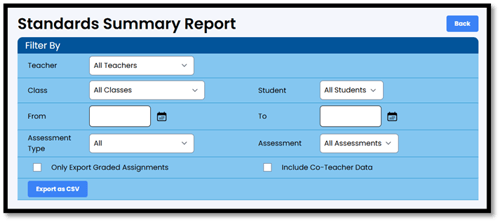
- On this dashboard, you can filter your report by teacher, class, student, and/or assessment type. You also have the option to include Co-Teacher Data by checking the appropriate box.
If you want to view all assignments and assessments, leave the filters unselected. However, please note that no individual student data will appear unless a specific student is selected from the filter options.
By default, this report displays average scores at the school and class levels, rather than individual student performance.
-
Click Export as CSV to download the full report.
Rostering Rollover Support
For most districts, schools, and teachers, starting the new school year with a clean slate provides the best experience.
- If your school uses Clever or ClassLink for rostering and Single Sign-On, student rosters and data will be automatically archived.
- If you roster manually, your existing data will remain unchanged unless action is taken. EPS recommends beginning the new school year fresh by requesting the deletion of current rosters and data before the start of the school year.
To request data removal, please contact our support team.