Switch to the Administrator Role
Access the Class
Add a Co-Teacher to the Class
Only users with the Administrator role can add a co-teacher to a SPIRE Up class.
Switch to the Administrator Role
If your account has multiple roles assigned, you must switch to your Administrator role before making changes to classes.
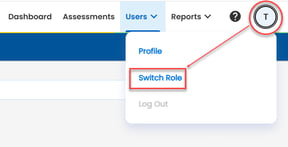
- Select your profile icon in the upper-right corner.
- Click Switch Role.
- Select Administrator.
- Confirm that Admin appears in the navigation menu.
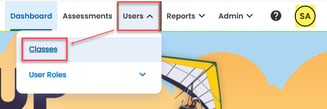
- Navigate to Users > Classes.
Access the Class
You can edit a class using either of the following methods:
Option 1: Edit from the Class List
- Locate the class you want to update.
- In the Actions column, select the Edit Class icon.

Option 2: Open the Class Details Page
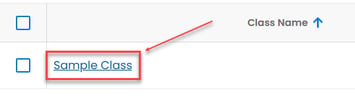
- Select the class name from the Classes list.
- On the Class Details page, select Edit.

Once the class is in edit mode, continue with the steps below to add a co-teacher.
Add a Co-Teacher
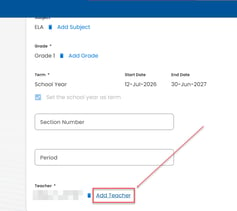
- Scroll to the Teacher section and select Add Teacher.
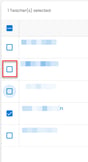
- Locate the teacher you want to add as a co-teacher.
- Select the checkbox next to the teacher's name.
- Click Add To Class.

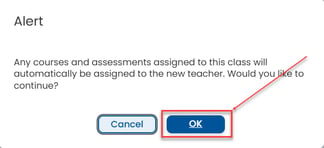
- When the confirmation message appears, select Ok to continue.
Note: Any courses and assessments assigned to the class will automatically be assigned to the newly added co-teacher.